<?xml version="1.0" encoding="utf-8"?><feed xmlns="http://www.w3.org/2005/Atom" xml:lang="en"><generator uri="https://jekyllrb.com/" version="4.4.1">Jekyll</generator><link href="https://blog.splatlabs.games/feed.xml" rel="self" type="application/atom+xml" /><link href="https://blog.splatlabs.games/" rel="alternate" type="text/html" hreflang="en" /><updated>2026-11-21T17:19:23-08:00</updated><id>https://blog.splatlabs.games/feed.xml</id><title type="html">Splat Labs Blog</title><subtitle>News, behind-the-scenes stories, and game-making tips from Splat Labs, where kids turn their ideas into playable games.</subtitle><author><name>Splat Labs</name></author><entry><title type="html">Creating a Quest using Splat Script</title><link href="https://blog.splatlabs.games/2026/11/creating-a-quest-using-splat-script/" rel="alternate" type="text/html" title="Creating a Quest using Splat Script" /><published>2026-11-20T09:00:00-08:00</published><updated>2026-11-20T09:00:00-08:00</updated><id>https://blog.splatlabs.games/2026/11/creating-a-quest-using-splat-script</id><content type="html" xml:base="https://blog.splatlabs.games/2026/11/creating-a-quest-using-splat-script/"><![CDATA[<p>Last time, in <a href="/2026/11/meet-splat-script/">Meet Splat Script</a>, we made a
baker who wanted their key back. This time we’re going bigger: a whole
quest across four worlds, with a story, a trade, a spell to break and a
friend to rescue.</p>

<p>You’ll build every part of it yourself, step by step, and you’ll write five
short scripts to tie it all together. Never used Splat Labs before? That’s
fine. We’ll show you every button.</p>

<!--more-->

<p>Want to see where we’re going first? <a href="https://splatlabs.games/play/skl-uDXAbwg">Play The Sun Lantern</a>,
the game this post builds.</p>

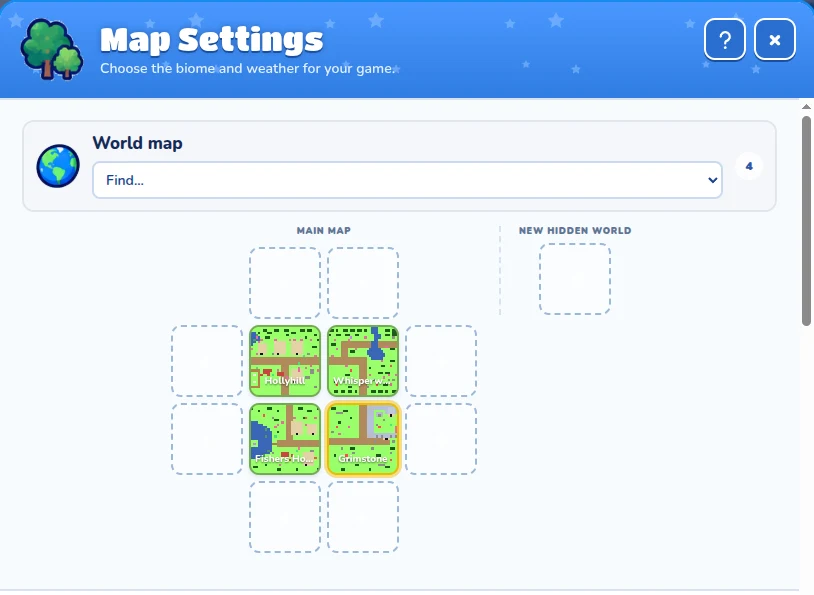
<p><img src="/assets/posts/creating-a-quest-using-splat-script/world-map.webp" alt="The world map in Map Settings: four worlds in a two by two grid, Hollyhill and Whisperwood on top, Fishers Hollow and Grimstone underneath" /></p>

<h2 id="the-quest-were-making">The quest we’re making</h2>

<p>Our game is called <strong>The Sun Lantern</strong>. Here’s the story the player hears
when the game starts.</p>

<h3 id="the-story">The story</h3>

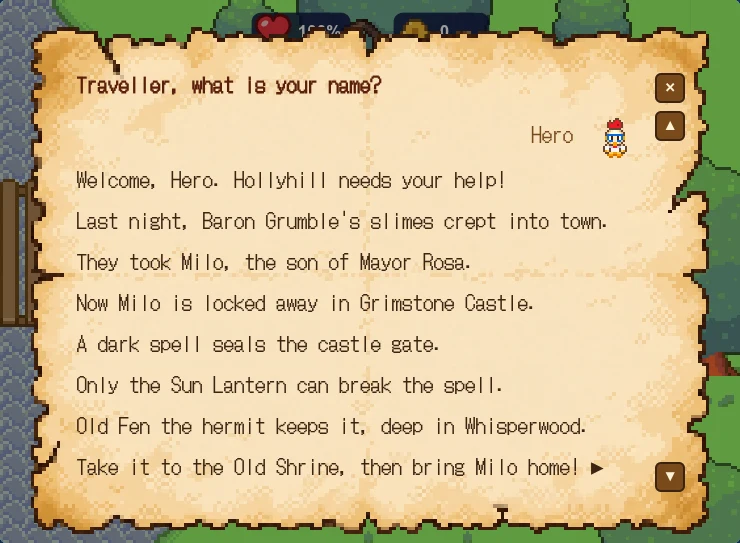
<p>Baron Grumble’s slimes crept into the village of Hollyhill and carried off
Milo, the son of Mayor Rosa. Milo is locked away in Grimstone Castle, and a
dark spell holds the castle gate shut.</p>

<p>Only the Sun Lantern can break the spell. Old Fen the hermit keeps it, deep
in Whisperwood. But Fen is hungry, and he won’t hand it over for nothing.</p>

<h3 id="the-four-worlds">The four worlds</h3>

<p>The game has four worlds in a two by two grid, using three biomes. A biome
is the kind of world: it changes the ground, the plants and the brushes you
can use.</p>

<table>
  <thead>
    <tr>
      <th>World</th>
      <th>Biome</th>
      <th>What happens there</th>
    </tr>
  </thead>
  <tbody>
    <tr>
      <td><strong>Hollyhill</strong></td>
      <td>Village</td>
      <td>The hero starts here. Mayor Rosa asks for help.</td>
    </tr>
    <tr>
      <td><strong>Whisperwood</strong></td>
      <td>Forest</td>
      <td>Old Fen has the lantern. The Old Shrine is in the woods.</td>
    </tr>
    <tr>
      <td><strong>Fishers Hollow</strong></td>
      <td>Village</td>
      <td>A fish is hidden on a little island in the lake.</td>
    </tr>
    <tr>
      <td><strong>Grimstone</strong></td>
      <td>Castle</td>
      <td>Milo waits behind the castle gate, guarded by slimes.</td>
    </tr>
  </tbody>
</table>

<h3 id="how-the-player-wins">How the player wins</h3>

<p>The player talks to Fen, who wants a fish. They find the fish in Fishers
Hollow and trade it to Fen for the Sun Lantern. Then they take the
lantern to the Old Shrine, which wakes the shrine and breaks the spell on
the castle gate far away. Last of all, they free Milo and lead him home to Hollyhill.</p>

<h2 id="step-1-make-the-game">Step 1: Make the game</h2>

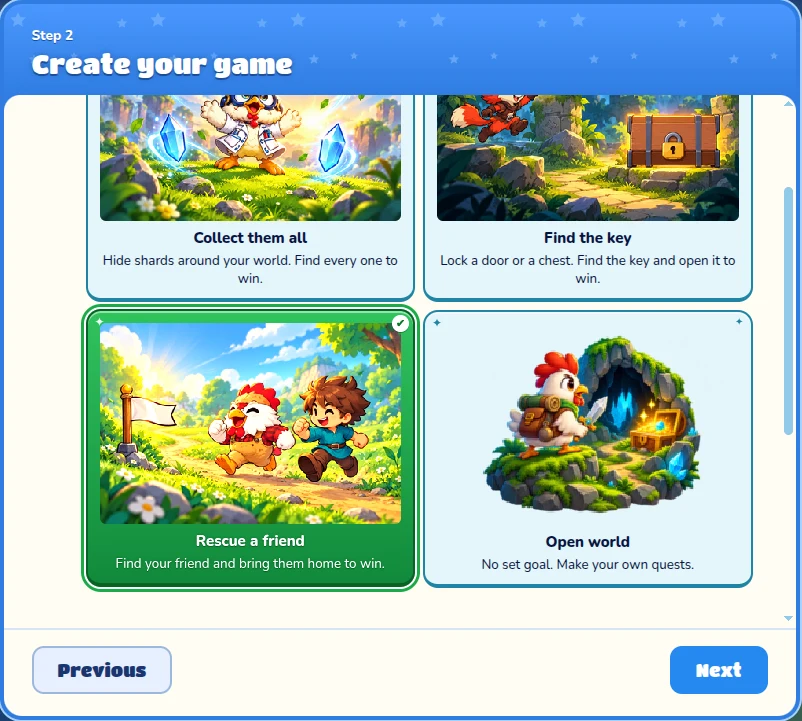
<p>Sign in, open your Lab and press <strong>Create a Game</strong>. A wizard asks a few
questions. Pick <strong>Adventure</strong>, then choose <strong>Rescue a friend</strong> for how the
hero wins. In a rescue game, the hero wins by bringing a friend back to
where they started.</p>

<p><img src="/assets/posts/creating-a-quest-using-splat-script/wizard-goal.webp" alt="The setup wizard asking how the hero wins, with Rescue a friend picked" /></p>

<p>Pick your hero and press <strong>Next</strong>. You can rename the game later in <strong>Game
settings</strong> <img class="icon" src="/assets/posts/creating-a-quest-using-splat-script/button-game-settings.webp" alt="" />, the cog button under the map. Ours is
called The Sun Lantern.</p>

<p>The wizard also makes a little story picture book. Open <strong>Game settings</strong>,
press <strong>Story</strong>, and pick <strong>Milo</strong> as the one who needs rescuing, so the
bag says “Find Milo.” Then turn <strong>Tell the story</strong> off, because our scroll
will tell the story instead.</p>

<h3 id="a-quick-tour-of-the-builder">A quick tour of the builder</h3>

<p>The builder has three parts:</p>

<table>
  <thead>
    <tr>
      <th>Part</th>
      <th>What it’s for</th>
    </tr>
  </thead>
  <tbody>
    <tr>
      <td><strong>Left side</strong></td>
      <td>The brushes, in drawers: <strong>Terrain</strong> for the land, <strong>Objects</strong> for things and people, <strong>Inventory</strong> for things to find.</td>
    </tr>
    <tr>
      <td><strong>Middle</strong></td>
      <td>The map of the world you’re building.</td>
    </tr>
    <tr>
      <td><strong>Under the map</strong></td>
      <td>Buttons for <strong>Game settings</strong> <img class="icon" src="/assets/posts/creating-a-quest-using-splat-script/button-game-settings.webp" alt="" />, <strong>Map</strong> <img class="icon" src="/assets/posts/creating-a-quest-using-splat-script/button-map.webp" alt="" />, <strong>Play</strong> <img class="icon" src="/assets/posts/creating-a-quest-using-splat-script/button-play.webp" alt="" />, <strong>Select</strong> <img class="icon" src="/assets/posts/creating-a-quest-using-splat-script/button-select.webp" alt="" /> and <strong>Erase</strong> <img class="icon" src="/assets/posts/creating-a-quest-using-splat-script/button-erase.webp" alt="" />.</td>
    </tr>
  </tbody>
</table>

<p><img src="/assets/posts/creating-a-quest-using-splat-script/map-button.webp" alt="The buttons under the map. The Map button, with a picture of a folded map, is circled in red" /></p>

<h3 id="how-to-paint-with-a-brush">How to paint with a brush</h3>

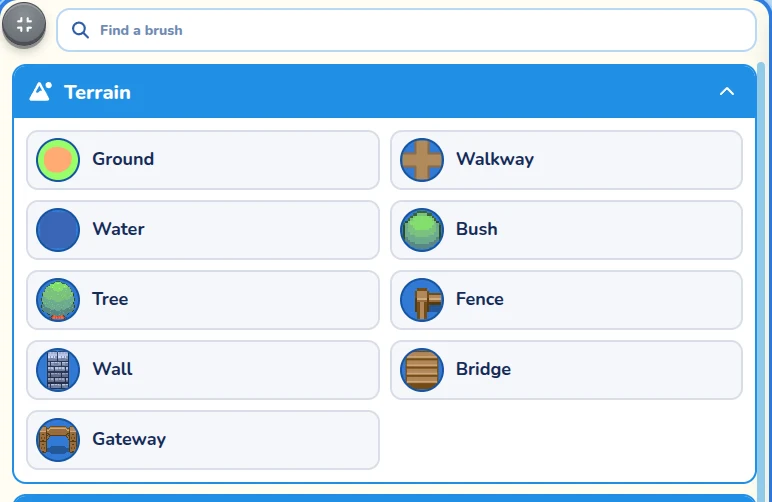
<p>Everything in this post is built with brushes, so here’s how they work.
Open a drawer on the left, like <strong>Terrain</strong>, and click a brush, like
<strong>Water</strong> <img class="icon" src="/assets/posts/creating-a-quest-using-splat-script/icon-water.webp" alt="" />.</p>

<p><img src="/assets/posts/creating-a-quest-using-splat-script/terrain-drawer.webp" alt="The Terrain drawer: Ground, Walkway, Water, Bush, Tree, Fence, Wall, Bridge and Gateway" /></p>

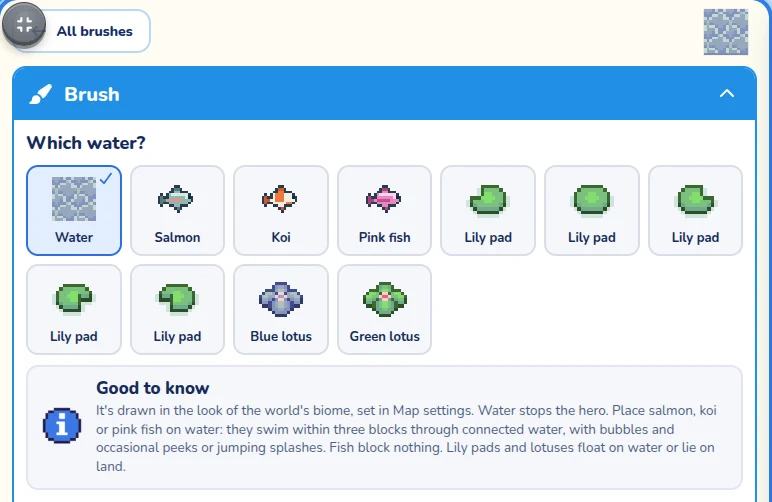
<p>The drawer turns into the <strong>Brush</strong> drawer. It shows the kinds of that
brush you can pick. For Water, that’s the water itself, fish, lily pads
and lotuses.</p>

<p><img src="/assets/posts/creating-a-quest-using-splat-script/water-brush.webp" alt="The Brush drawer for Water: Which water? with Water picked, then Salmon, Koi, Pink fish, five lily pads and two lotuses" /></p>

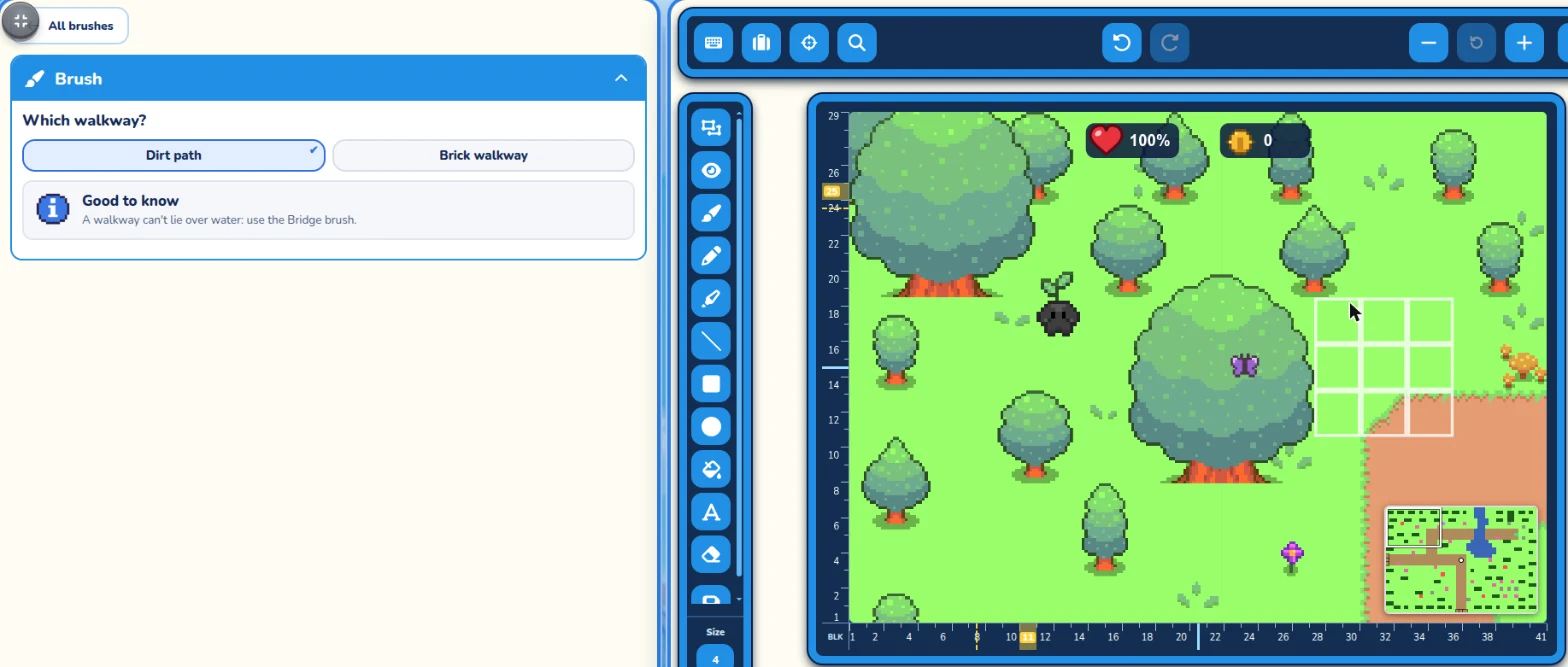
<p>Now move the pointer over the map. White squares show exactly where the
brush will paint, before you click. Click to paint one spot, or drag to
paint a line.</p>

<p><img src="/assets/posts/creating-a-quest-using-splat-script/walkway-footprint.webp" alt="The Walkway brush with Dirt path picked. On the map, a three by three square of white boxes shows where the path will go" /></p>

<p>Press <strong>All brushes</strong> at the top of the drawer to go back to every brush.
You can also type a brush’s name in <strong>Find a brush</strong>.</p>

<table>
  <thead>
    <tr>
      <th>Want to…</th>
      <th>Do this</th>
    </tr>
  </thead>
  <tbody>
    <tr>
      <td>Change something you put down</td>
      <td>Press <strong>Select</strong> <img class="icon" src="/assets/posts/creating-a-quest-using-splat-script/button-select.webp" alt="" /> and click it. Its <strong>Object settings</strong> open on the left.</td>
    </tr>
    <tr>
      <td>Take something away</td>
      <td>Press <strong>Erase</strong> <img class="icon" src="/assets/posts/creating-a-quest-using-splat-script/button-erase.webp" alt="" /> and click it.</td>
    </tr>
    <tr>
      <td>Undo a mistake</td>
      <td>Press <strong>Undo</strong> at the top of the map.</td>
    </tr>
  </tbody>
</table>

<h2 id="step-2-lay-out-the-worlds">Step 2: Lay out the worlds</h2>

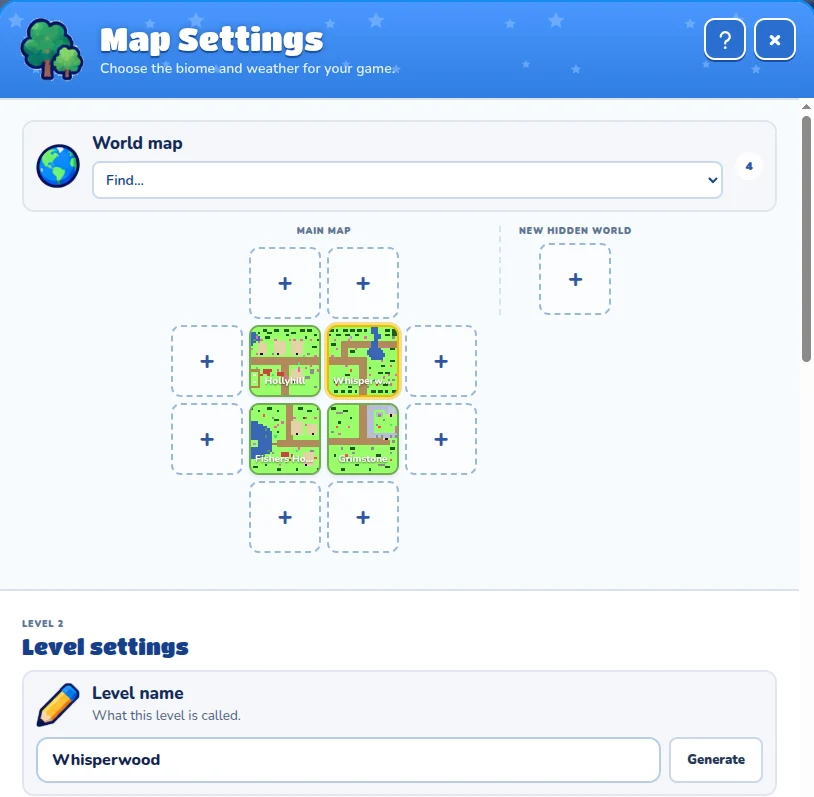
<p>Press <strong>Map</strong> <img class="icon" src="/assets/posts/creating-a-quest-using-splat-script/button-map.webp" alt="" /> under the map to open <strong>Map Settings</strong>. Your first
world is already there, in the middle of the <strong>World map</strong> grid.</p>

<p>Around it are squares with a <strong>+</strong> <img class="icon" src="/assets/posts/creating-a-quest-using-splat-script/button-plus.webp" alt="" />. Press one to add a new world
on that side. Add three more worlds, so you have four in a square.</p>

<p><img src="/assets/posts/creating-a-quest-using-splat-script/map-grid.webp" alt="Map Settings with four worlds in a square: Hollyhill, Whisperwood, Fishers Hollow and Grimstone. Empty squares with a plus sign surround them. Under the grid, Level settings shows the Level name box" /></p>

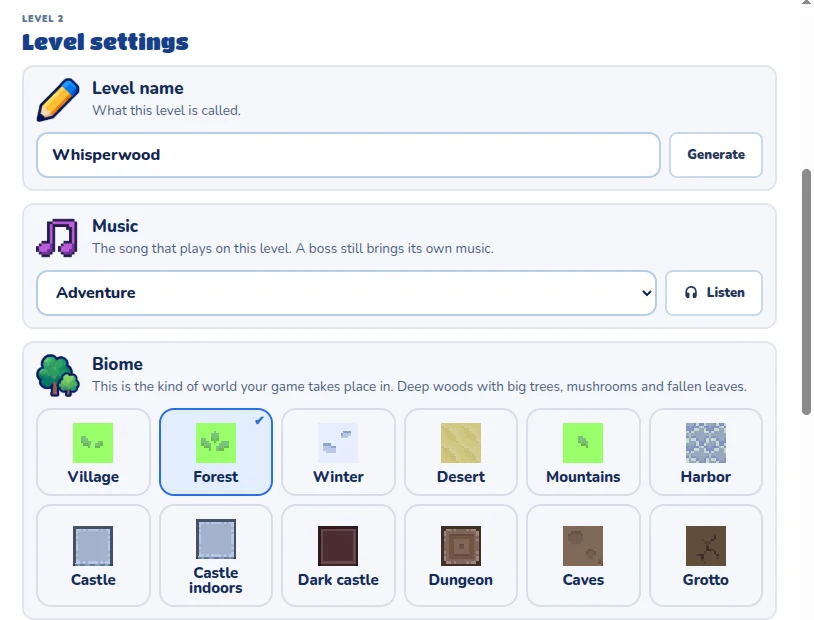
<p>Click a world in the grid to pick it. It gets a yellow border, and <strong>Level
settings</strong> underneath are for that world. Set two things for each one:</p>

<table>
  <thead>
    <tr>
      <th>Setting</th>
      <th>What to choose</th>
    </tr>
  </thead>
  <tbody>
    <tr>
      <td><strong>Level name</strong></td>
      <td>Hollyhill, Whisperwood, Fishers Hollow or Grimstone.</td>
    </tr>
    <tr>
      <td><strong>Biome</strong></td>
      <td>Village for Hollyhill and Fishers Hollow, Forest and Castle for the others.</td>
    </tr>
  </tbody>
</table>

<p><img src="/assets/posts/creating-a-quest-using-splat-script/level-settings.webp" alt="Level settings for Whisperwood: the Level name box, Music, and the Biome tiles with Forest picked" /></p>

<p>The level name matters. It’s what the world is called on the map, and
scripts can use it as an ID too.</p>

<p>The hero walks off one edge of a world and comes in on the next one, so the
grid is the shape of your adventure.</p>

<h3 id="opening-a-world-to-build-it">Opening a world to build it</h3>

<p>The builder shows one world at a time. To build a different world, press
<strong>Map</strong> <img class="icon" src="/assets/posts/creating-a-quest-using-splat-script/button-map.webp" alt="" />, click the world in the grid, then press <strong>×</strong> at the top
right of Map Settings. The map now shows that world, and the brushes are
the ones for its biome.</p>

<h2 id="step-3-build-hollyhill">Step 3: Build Hollyhill</h2>

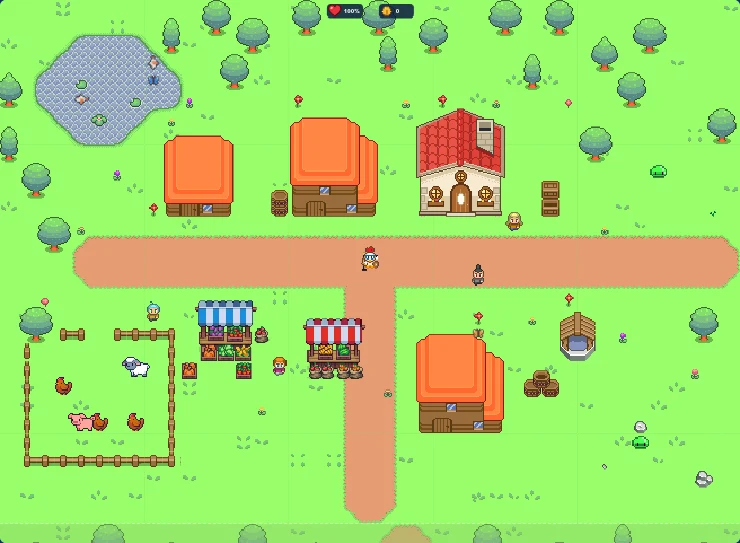
<p>Open <strong>Hollyhill</strong>: press <strong>Map</strong> <img class="icon" src="/assets/posts/creating-a-quest-using-splat-script/button-map.webp" alt="" />, click Hollyhill in the grid, and
press <strong>×</strong>. Hollyhill is where the hero starts, so make it feel like home.</p>

<p><img src="/assets/posts/creating-a-quest-using-splat-script/hollyhill.webp" alt="Hollyhill from above: a brick lane through the middle, houses with orange roofs, a stone house with a red roof, two market stalls, a fenced garden with chickens, a sheep and a pig, a pond with koi, a well and lots of trees and flowers" /></p>

<h3 id="lay-the-land-first">Lay the land first</h3>

<p>Open the <strong>Terrain</strong> drawer and pick <strong>Walkway</strong> <img class="icon" src="/assets/posts/creating-a-quest-using-splat-script/icon-walkway.webp" alt="" />. In the Brush
drawer, pick <strong>Brick walkway</strong>, then drag across the map to draw a road
through the world, with a branch going south. Roads show the player where
to go, and they lead to the next world.</p>

<p>Pick <strong>Water</strong> <img class="icon" src="/assets/posts/creating-a-quest-using-splat-script/icon-water.webp" alt="" /> and paint a pond in a corner. Then, still in the
Water brush, pick <strong>Lily pad</strong> and <strong>Koi</strong> and click them onto the pond.</p>

<p>Line the edges of the world with <strong>Tree</strong> <img class="icon" src="/assets/posts/creating-a-quest-using-splat-script/icon-tree.webp" alt="" /> and <strong>Bush</strong> <img class="icon" src="/assets/posts/creating-a-quest-using-splat-script/icon-bush.webp" alt="" />,
so it feels closed in and cosy. The Tree brush has several shapes to pick
from, so mix them up.</p>

<h3 id="then-fill-it-with-life">Then fill it with life</h3>

<p>Open the <strong>Objects</strong> drawer. Put a few <strong>House</strong> <img class="icon" src="/assets/posts/creating-a-quest-using-splat-script/icon-house.webp" alt="" /> brushes along the
road, and a <strong>Shop</strong> <img class="icon" src="/assets/posts/creating-a-quest-using-splat-script/icon-shop.webp" alt="" /> market stall or two.</p>

<p>The <strong>Village decoration</strong> <img class="icon" src="/assets/posts/creating-a-quest-using-splat-script/icon-village-decoration.webp" alt="" /> brush has wells, barrels,
crates and flowers, so sprinkle them about. Draw a <strong>Fence</strong> <img class="icon" src="/assets/posts/creating-a-quest-using-splat-script/icon-fence.webp" alt="" /> in a
square and put a few <strong>Animal</strong> <img class="icon" src="/assets/posts/creating-a-quest-using-splat-script/icon-animal.webp" alt="" /> chickens inside to make a farm.</p>

<p>Add some villagers with the <strong>Villager</strong> <img class="icon" src="/assets/posts/creating-a-quest-using-splat-script/icon-villager.webp" alt="" /> brush. When you put
one down, its <strong>Object settings</strong> open on the left: type something for it
to say in <strong>What they say</strong>. A slime or two from the <strong>Enemy</strong> <img class="icon" src="/assets/posts/creating-a-quest-using-splat-script/icon-enemy.webp" alt="" />
brush near the edges keeps the hero on their toes.</p>

<blockquote>
  <p>Little things make a world feel real. A villager who says “Have you seen
my pig? Oh, there she is.” next to a pig makes players smile.</p>
</blockquote>

<h3 id="mayor-rosa">Mayor Rosa</h3>

<p>One villager is special: <strong>Mayor Rosa</strong>. Put her by the big house. In her
<strong>Object settings</strong>, type <em>Rosa</em> in the <strong>ID</strong> box at the top. We’ll give her
a script in Step 8.</p>

<h2 id="step-4-build-whisperwood">Step 4: Build Whisperwood</h2>

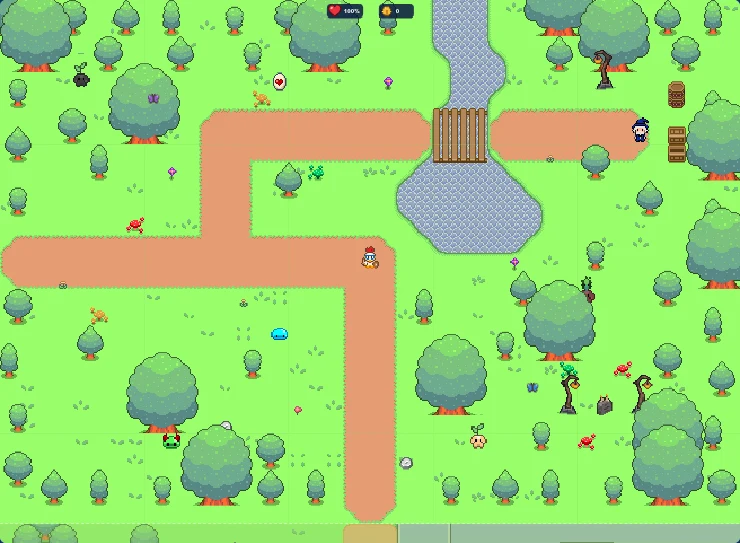
<p>Open <strong>Whisperwood</strong>: press <strong>Map</strong> <img class="icon" src="/assets/posts/creating-a-quest-using-splat-script/button-map.webp" alt="" />, click Whisperwood in the grid,
and press <strong>×</strong>. It’s a Forest, so the brushes now draw forest things.
Pack it with trees, and leave paths through it.</p>

<p><img src="/assets/posts/creating-a-quest-using-splat-script/whisperwood.webp" alt="Whisperwood from above: a dirt path winds through thick forest, a stream runs down from the top with a plank bridge over it, Old Fen stands by his crates on the right, and the candlelit Old Shrine sits among dead trees at the bottom right" /></p>

<h3 id="the-stream-and-bridge">The stream and bridge</h3>

<p>Pick <strong>Water</strong> <img class="icon" src="/assets/posts/creating-a-quest-using-splat-script/icon-water.webp" alt="" /> and drag down from the top edge to paint a stream,
then widen it into a pond. Draw a <strong>Walkway</strong> <img class="icon" src="/assets/posts/creating-a-quest-using-splat-script/icon-walkway.webp" alt="" /> dirt path up to
the stream on both sides.</p>

<p>Pick <strong>Bridge</strong> <img class="icon" src="/assets/posts/creating-a-quest-using-splat-script/icon-bridge.webp" alt="" />, choose <strong>Plank</strong>, and set it to run <strong>West to
east</strong>. Then drag it across the stream where the path meets it, so the hero
can cross.</p>

<h3 id="old-fen">Old Fen</h3>

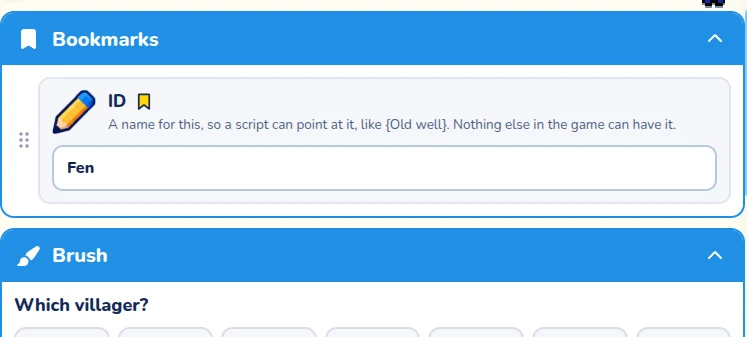
<p>At the end of the path, put a <strong>Villager</strong> <img class="icon" src="/assets/posts/creating-a-quest-using-splat-script/icon-villager.webp" alt="" />. We picked a wizard
with a white beard from <strong>Which villager?</strong>. Type <em>Fen</em> in his <strong>ID</strong> box.</p>

<p><img src="/assets/posts/creating-a-quest-using-splat-script/id-box.webp" alt="A villager's ID box with Fen typed in it" /></p>

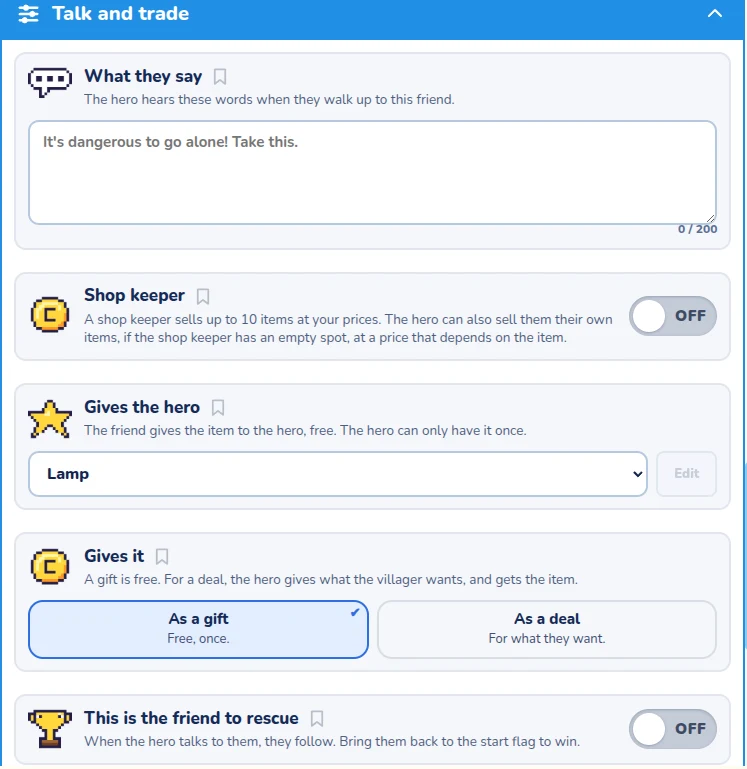
<p>Fen needs the lantern in his bag before he can trade it. Scroll down his
Object settings to <strong>Talk and trade</strong>, and in <strong>Gives the hero</strong>, choose
<strong>Lamp</strong>. The Lamp is our Sun Lantern. In any game, a Lamp in the hero’s
bag lights up dark places by itself. In ours, it’s also the key to the
shrine’s magic.</p>

<p><img src="/assets/posts/creating-a-quest-using-splat-script/gives-the-hero.webp" alt="Fen's Talk and trade settings: Gives the hero is set to Lamp" /></p>

<h3 id="the-old-shrine">The Old Shrine</h3>

<p>The shrine is a decoration with an ID. Pick the <strong>Forest decoration</strong>
<img class="icon" src="/assets/posts/creating-a-quest-using-splat-script/icon-forest-decoration.webp" alt="" /> brush, choose <strong>Tombstone with candles</strong>, and put it
deep in the woods with lamp posts and mushrooms around it.</p>

<p>Then press <strong>Select</strong> <img class="icon" src="/assets/posts/creating-a-quest-using-splat-script/button-select.webp" alt="" />, click the tombstone, and type <em>Old
shrine</em> in its <strong>ID</strong> box. Anything with an ID can be pointed at by a
script. That’s how the shrine will know when the hero brings it the
lantern.</p>

<p>Add a few sprouts and slimes with <strong>Enemy</strong> <img class="icon" src="/assets/posts/creating-a-quest-using-splat-script/icon-enemy.webp" alt="" />, and Whisperwood is
ready.</p>

<h2 id="step-5-build-fishers-hollow">Step 5: Build Fishers Hollow</h2>

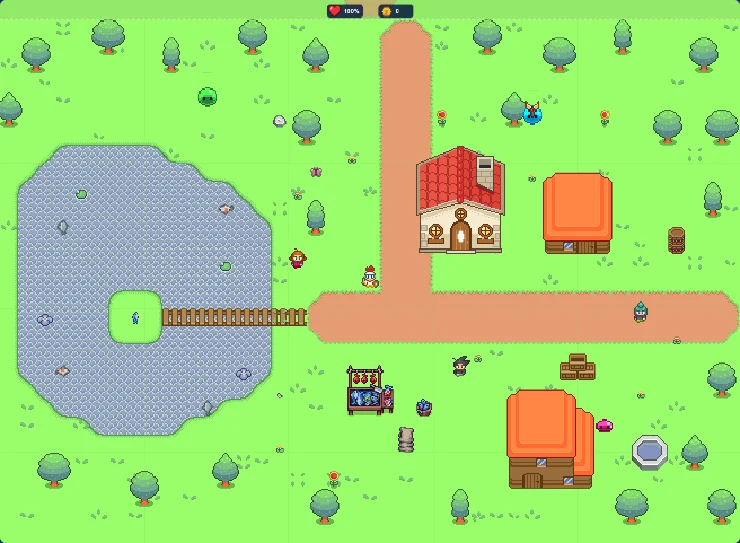
<p>Open <strong>Fishers Hollow</strong>: press <strong>Map</strong> <img class="icon" src="/assets/posts/creating-a-quest-using-splat-script/button-map.webp" alt="" />, click Fishers Hollow in the
grid, and press <strong>×</strong>. It’s a lakeside village, and the fish is the
treasure here, so make the player work a little to get it.</p>

<p><img src="/assets/posts/creating-a-quest-using-splat-script/fishers-hollow.webp" alt="Fishers Hollow from above: a big lake on the left with a small island in the middle and a pier leading to it, houses and a fish stall on the right, and a dirt road going north and east" /></p>

<p>Paint a big lake with <strong>Water</strong> <img class="icon" src="/assets/posts/creating-a-quest-using-splat-script/icon-water.webp" alt="" />, row by row, and leave one block
of land in the middle for an island. Pick <strong>Bridge</strong> <img class="icon" src="/assets/posts/creating-a-quest-using-splat-script/icon-bridge.webp" alt="" />, choose
<strong>Narrow plank</strong>, and lay it from the shore to the island, like a pier.</p>

<p>Pick the <strong>Shop</strong> <img class="icon" src="/assets/posts/creating-a-quest-using-splat-script/icon-shop.webp" alt="" /> brush, choose <strong>Fish</strong>, and click it onto the
island. The hero picks it up and carries it in their bag.</p>

<p>Add a fish stall with the Shop brush, a couple of <strong>House</strong> <img class="icon" src="/assets/posts/creating-a-quest-using-splat-script/icon-house.webp" alt="" />
brushes, and villagers who drop hints, like “The best fish swim round the
little island. Try the old pier!”</p>

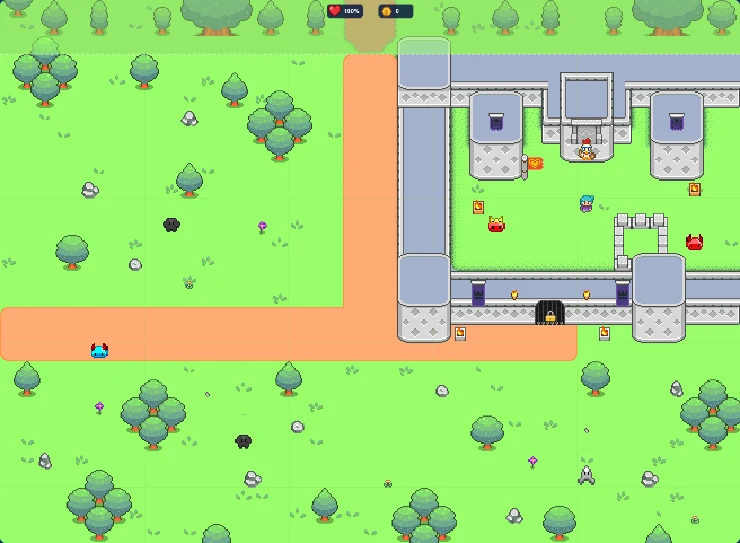
<h2 id="step-6-build-grimstone-castle">Step 6: Build Grimstone Castle</h2>

<p>Open <strong>Grimstone</strong>: press <strong>Map</strong> <img class="icon" src="/assets/posts/creating-a-quest-using-splat-script/button-map.webp" alt="" />, click Grimstone in the grid, and
press <strong>×</strong>. Grimstone has the Castle biome, so the Objects drawer has the
<strong>Castle</strong> <img class="icon" src="/assets/posts/creating-a-quest-using-splat-script/icon-castle.webp" alt="" /> brush. It puts down whole castle sections.</p>

<p><img src="/assets/posts/creating-a-quest-using-splat-script/grimstone.webp" alt="Grimstone from above: grey castle walls and towers make a courtyard, the keep stands at the back with a crowned gate, two slime guards and Milo wait inside, and the locked iron gate is in the front wall" /></p>

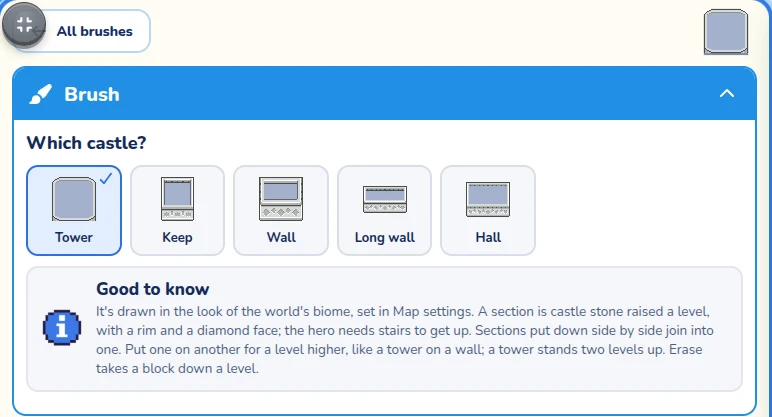
<h3 id="build-the-walls">Build the walls</h3>

<p>Pick <strong>Castle</strong> <img class="icon" src="/assets/posts/creating-a-quest-using-splat-script/icon-castle.webp" alt="" />. The Brush drawer asks <strong>Which castle?</strong>:</p>

<p><img src="/assets/posts/creating-a-quest-using-splat-script/castle-brush.webp" alt="The Brush drawer for Castle: Which castle? with Tower, Keep, Wall, Long wall and Hall" /></p>

<p>Pick <strong>Tower</strong> and click to put one at each corner. Then pick <strong>Long wall</strong>
and join the towers, so they make a courtyard. Put the <strong>Keep</strong> at the back.
Sections side by side join up by themselves.</p>

<p>Hang banners and torches on the walls with the <strong>Castle decoration</strong>
<img class="icon" src="/assets/posts/creating-a-quest-using-splat-script/icon-castle-decoration.webp" alt="" /> brush, and put braziers in the courtyard.</p>

<h3 id="the-two-gates">The two gates</h3>

<p>The castle needs a way in. Pick <strong>Castle gate</strong> <img class="icon" src="/assets/posts/creating-a-quest-using-splat-script/icon-castle-gate.webp" alt="" /> and choose
<strong>Iron gate</strong>. Put it on the ground right in front of the front wall, not on
top of the wall: the hero has to be able to stand in front of it. Then put a
<strong>Stone gate with a crown</strong> in front of the keep.</p>

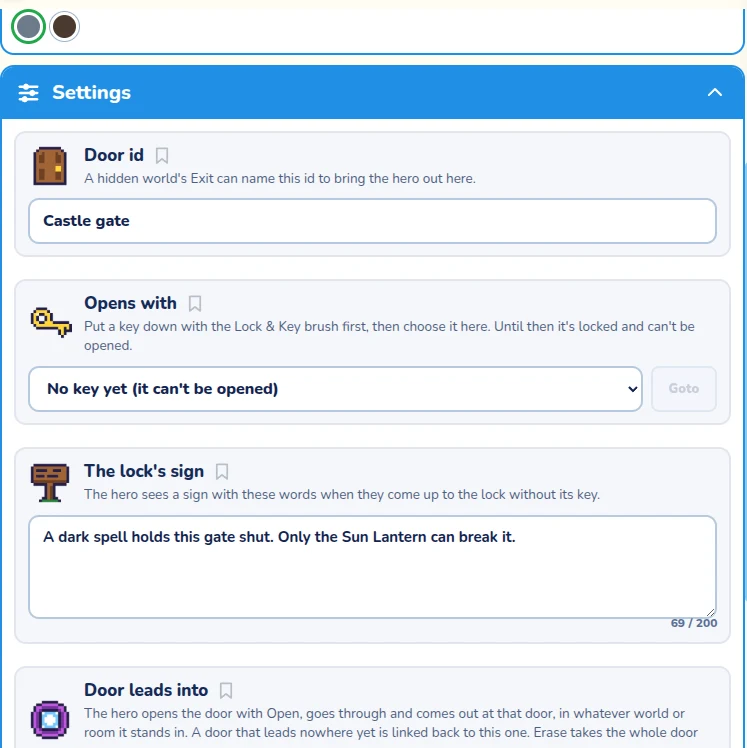
<p>Press <strong>Select</strong> <img class="icon" src="/assets/posts/creating-a-quest-using-splat-script/button-select.webp" alt="" />, click the iron gate, and set it up like this:</p>

<table>
  <thead>
    <tr>
      <th>Setting</th>
      <th>What to choose</th>
    </tr>
  </thead>
  <tbody>
    <tr>
      <td><strong>Door id</strong></td>
      <td><em>Castle gate</em></td>
    </tr>
    <tr>
      <td><strong>Opens with</strong></td>
      <td><strong>No key yet (it can’t be opened)</strong></td>
    </tr>
    <tr>
      <td><strong>The lock’s sign</strong></td>
      <td><em>A dark spell holds this gate shut. Only the Sun Lantern can break it.</em></td>
    </tr>
    <tr>
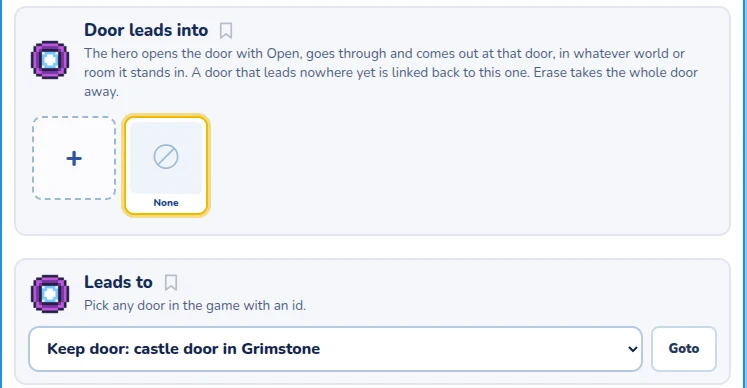
      <td><strong>Leads to</strong></td>
      <td>The keep’s gate. Give that one the Door id <em>Keep door</em> first.</td>
    </tr>
  </tbody>
</table>

<p><img src="/assets/posts/creating-a-quest-using-splat-script/gate-settings.webp" alt="The iron gate's settings: Door id is Castle gate, Opens with is No key yet, and the lock's sign says a dark spell holds the gate shut" /></p>

<p><strong>No key yet</strong> means no key in the game can open the gate. Only a script
can. <strong>Leads to</strong> means the hero goes through the iron gate and comes out at
the keep, inside the courtyard.</p>

<p><img src="/assets/posts/creating-a-quest-using-splat-script/gate-leads-to.webp" alt="Leads to is set to Keep door, a castle door in Grimstone" /></p>

<h3 id="milo">Milo</h3>

<p>Open the <strong>Inventory</strong> drawer and pick <strong>Friend to rescue</strong>
<img class="icon" src="/assets/posts/creating-a-quest-using-splat-script/icon-friend-to-rescue.webp" alt="" />. It only shows in rescue games. Click it into the
courtyard, then type <em>Milo</em> in his <strong>ID</strong> box, and give him something to
say, like “You came! Quick, get me out before Baron Grumble wakes up!”</p>

<p>Add some tough guards around him with <strong>Enemy</strong> <img class="icon" src="/assets/posts/creating-a-quest-using-splat-script/icon-enemy.webp" alt="" />, like a crowned
slime and a horned slime.</p>

<h2 id="step-7-tell-the-story-on-a-scroll">Step 7: Tell the story on a scroll</h2>

<p>Now for the scripts. The first one is the <strong>game script</strong>, which runs for
the whole game. Open <strong>Game settings</strong> <img class="icon" src="/assets/posts/creating-a-quest-using-splat-script/button-game-settings.webp" alt="" /> and press <strong>Game script</strong>.</p>

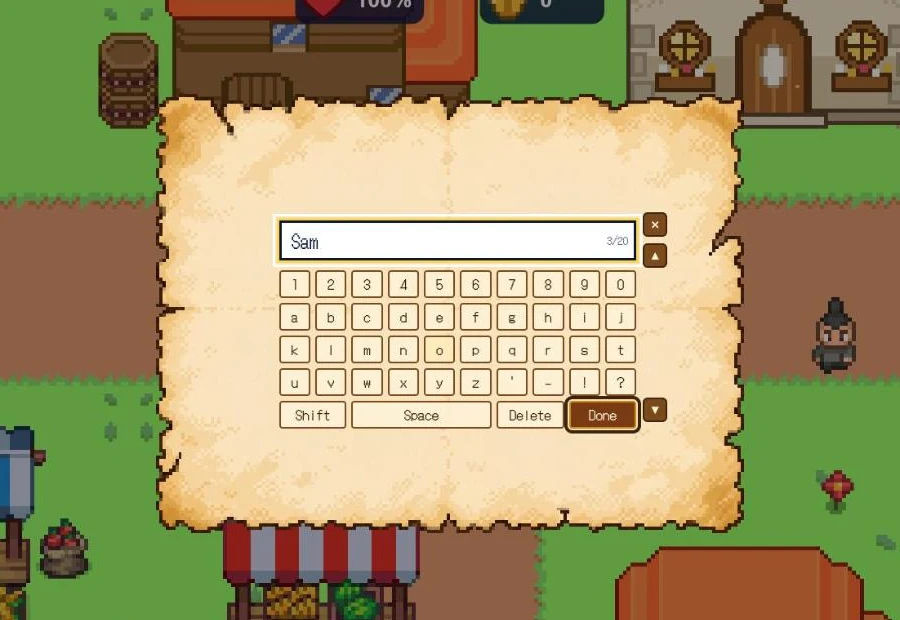
<p>A <strong>scroll</strong> is an old sheet of paper that opens over the game for a story.
While it’s open, every <code>say</code> line is written on it, and the player presses
A, Enter or Space to read on.</p>

<p>Here is the story script. Press play to try it.</p>

<figure class="script-embed">
  <iframe width="1030" height="600" src="https://splatlabs.games/t/embed/eEACiEd36DT" title="The Sun Lantern story scroll | Splat Labs" style="max-width:100%;height:auto;aspect-ratio:1030/600;min-height:440px;border:0" allow="fullscreen; gamepad; clipboard-write" allowfullscreen="" loading="lazy"></iframe>
</figure>

<h3 id="what-each-part-does">What each part does</h3>

<table>
  <thead>
    <tr>
      <th>Line</th>
      <th>What it does</th>
    </tr>
  </thead>
  <tbody>
    <tr>
      <td><code>when the game starts</code></td>
      <td>Runs once, when the game starts.</td>
    </tr>
    <tr>
      <td><code>if not @story_told</code></td>
      <td>Skips the story if the player has already read it.</td>
    </tr>
    <tr>
      <td><code>show a scroll with typing effect</code></td>
      <td>Opens the scroll, and types each line out.</td>
    </tr>
    <tr>
      <td><code>@name is the typed answer to "..."</code></td>
      <td>Asks a question, and the player types the answer.</td>
    </tr>
    <tr>
      <td><code>with @default is "Hero"</code></td>
      <td>The name to use if the player doesn’t type one.</td>
    </tr>
    <tr>
      <td><code>say "Welcome, @name."</code></td>
      <td>Writes the line, with the player’s name put in place of <code>@name</code>.</td>
    </tr>
    <tr>
      <td><code>hide the scroll</code></td>
      <td>Puts the scroll away, so the hero can move.</td>
    </tr>
  </tbody>
</table>

<p><img src="/assets/posts/creating-a-quest-using-splat-script/scroll-name.webp" alt="The scroll asking &quot;Traveller, what is your name?&quot;, with Sam typed in the box and a keyboard of letters underneath" /></p>

<p><code>@name</code> is a <strong>@variable</strong>. It remembers the answer for the whole game, in
every world. So any script can say the player’s name later on.</p>

<p><img src="/assets/posts/creating-a-quest-using-splat-script/scroll-story.webp" alt="The scroll telling the story: Welcome, Hero. Hollyhill needs your help! Then lines about Baron Grumble's slimes, Milo, the castle gate and the Sun Lantern" /></p>

<blockquote>
  <p><code>when the game starts</code> runs again after <strong>Try again</strong>. The
<code>@story_told</code> check means the player only has to read the story once.</p>
</blockquote>

<h2 id="step-8-mayor-rosas-advice">Step 8: Mayor Rosa’s advice</h2>

<p>Pick Rosa, then press <strong>Character scripting</strong> at the bottom of her <strong>Object
settings</strong>. Her script checks how far the hero has got, and says something
different each time.</p>

<figure class="script-embed">
  <iframe width="1030" height="600" src="https://splatlabs.games/t/embed/fLPuXLkocBQ" title="Mayor Rosa | Splat Labs" style="max-width:100%;height:auto;aspect-ratio:1030/600;min-height:440px;border:0" allow="fullscreen; gamepad; clipboard-write" allowfullscreen="" loading="lazy"></iframe>
</figure>

<p><code>if</code>, <code>else if</code> and <code>else</code> pick one thing to say. The first one that’s true
wins:</p>

<table>
  <thead>
    <tr>
      <th>If…</th>
      <th>Rosa says</th>
    </tr>
  </thead>
  <tbody>
    <tr>
      <td>The spell is broken</td>
      <td>“The gate is open! Bring my Milo home.”</td>
    </tr>
    <tr>
      <td>The hero carries the lantern</td>
      <td>“The Sun Lantern! Take it to the Old Shrine.”</td>
    </tr>
    <tr>
      <td>Neither yet</td>
      <td>Where to find Old Fen.</td>
    </tr>
  </tbody>
</table>

<h2 id="step-9-old-fens-bargain">Step 9: Old Fen’s bargain</h2>

<p>This is the heart of the quest. Fen has the lantern, but he won’t give it
away. He wants a fish first.</p>

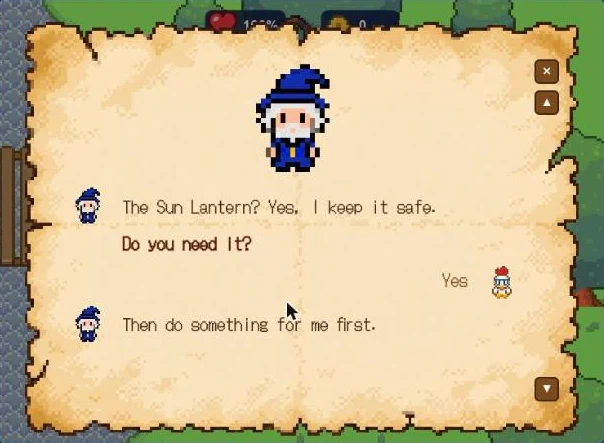
<p>Open Fen’s <strong>Character scripting</strong>. His whole talk happens on a scroll, so
it reads like a chat. His face is beside his lines, and the hero’s face is
beside the player’s answers.</p>

<p><img src="/assets/posts/creating-a-quest-using-splat-script/fen-asks.webp" alt="Fen's scroll: a big picture of Fen at the top, then &quot;The Sun Lantern? Yes, I keep it safe.&quot; The question &quot;Do you need it?&quot; is answered Yes, and Fen says &quot;Then do something for me first.&quot;" /></p>

<p>Here is his script. Try talking to him, then give the hero a fish and try
again.</p>

<figure class="script-embed">
  <iframe width="1030" height="600" src="https://splatlabs.games/t/embed/hWJO534kPTF" title="Old Fen's bargain | Splat Labs" style="max-width:100%;height:auto;aspect-ratio:1030/600;min-height:440px;border:0" allow="fullscreen; gamepad; clipboard-write" allowfullscreen="" loading="lazy"></iframe>
</figure>

<h3 id="how-the-trade-works">How the trade works</h3>

<p><code>the {Hero} has "Fish"</code> is true when the hero carries a fish. Until then,
Fen asks for one, and tells the hero where the fishers live.</p>

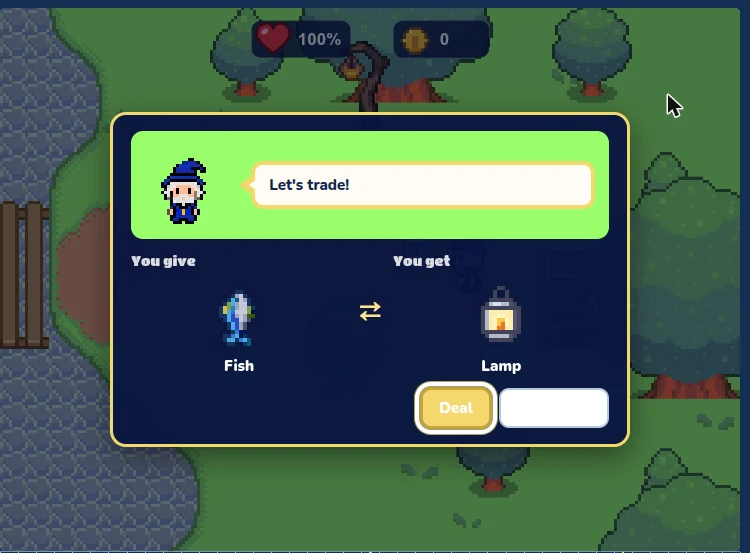
<p>Once the hero has the fish, Fen makes an <strong>offer</strong>:</p>

<pre><code>@deal is offer "Lamp" to the {Hero} for "Fish"
</code></pre>

<p>A deal box opens with <strong>Deal</strong> and <strong>No thanks</strong>. If the player picks Deal,
the fish goes into Fen’s bag and the lamp goes into the hero’s, both at
once. <code>@deal</code> becomes yes, and Fen sets <code>@lantern_given is yes</code> so every
script knows the hero has the lantern.</p>

<p><img src="/assets/posts/creating-a-quest-using-splat-script/fen-deal.webp" alt="The deal box: Fen says &quot;Let's trade!&quot; You give a Fish, you get a Lamp, with Deal and No thanks buttons" /></p>

<blockquote>
  <p>Fen’s script puts the scroll away with <code>hide the scroll</code> just before the
offer, so the deal box has the screen to itself. Then it opens a new
scroll straight after to say thank you.</p>
</blockquote>

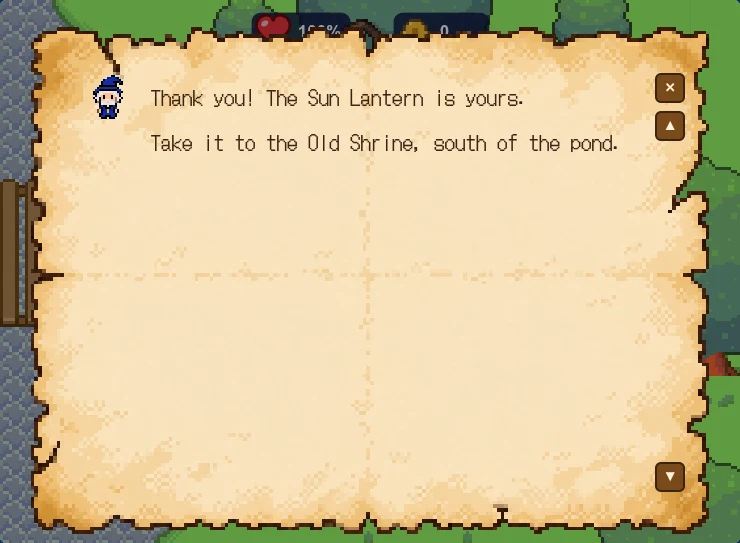
<p><img src="/assets/posts/creating-a-quest-using-splat-script/fen-thanks.webp" alt="Fen's scroll after the trade: &quot;Thank you! The Sun Lantern is yours. Take it to the Old Shrine, south of the pond.&quot;" /></p>

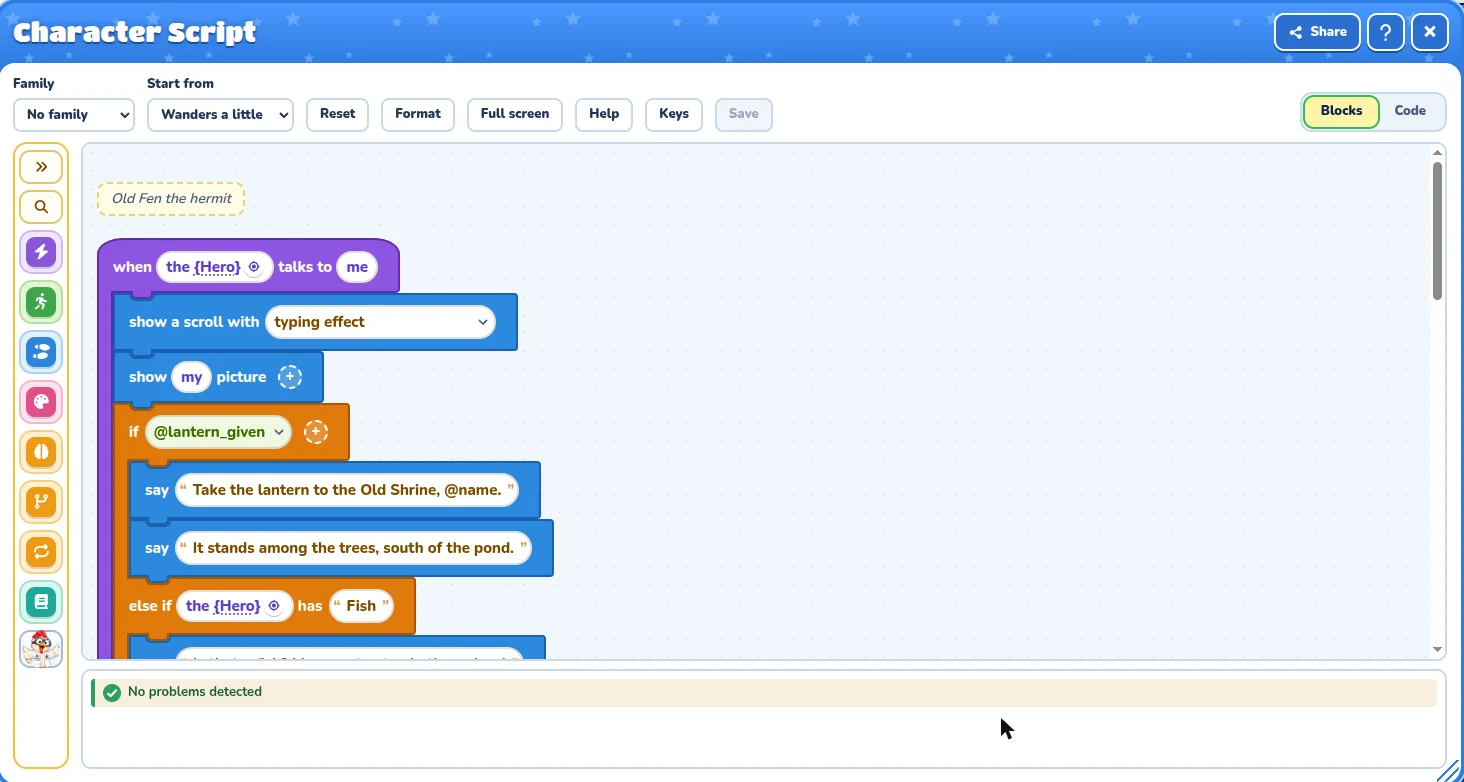
<p>Prefer blocks? Press <strong>Blocks</strong> at the top right of the script window to
see the same script snapped together.</p>

<p><img src="/assets/posts/creating-a-quest-using-splat-script/fen-blocks.webp" alt="Fen's script as blocks: a purple when the hero talks to me block, holding show a scroll with typing effect, show my picture, and an orange if block" /></p>

<h2 id="step-10-wake-the-shrine">Step 10: Wake the shrine</h2>

<p>Bringing the lantern to the shrine is the <strong>action</strong> that breaks the spell. It happens in
Whisperwood, so it goes in Whisperwood’s <strong>level script</strong>. A level script
runs while the hero is in that world.</p>

<p>Pick Whisperwood on the map, open <strong>Map settings</strong>, and press <strong>Level
script</strong> at the bottom.</p>

<figure class="script-embed">
  <iframe width="1030" height="600" src="https://splatlabs.games/t/embed/12iES5DFBpJ" title="Bring the lantern to the Old Shrine | Splat Labs" style="max-width:100%;height:auto;aspect-ratio:1030/600;min-height:440px;border:0" allow="fullscreen; gamepad; clipboard-write" allowfullscreen="" loading="lazy"></iframe>
</figure>

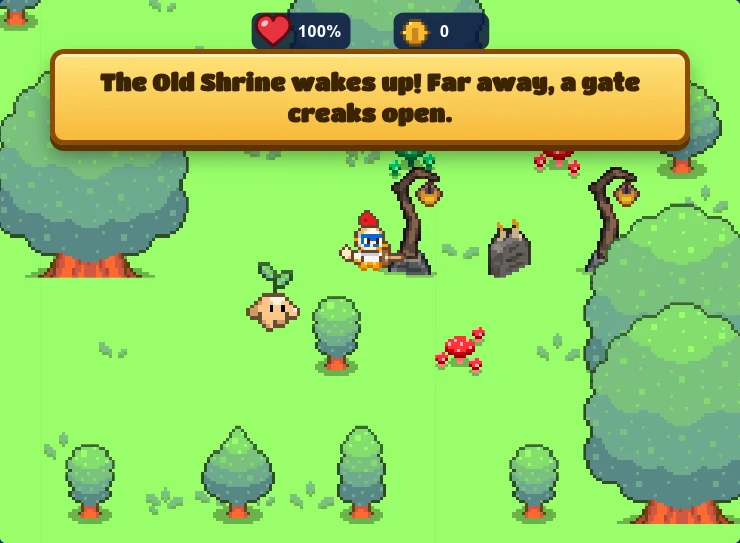
<p><code>when the {Hero} is near the {Old shrine}</code> runs when the hero walks up to
the decoration we gave that ID. If they carry the lamp, and the spell isn’t
broken yet, the script sets <code>@spell_broken is yes</code>, plays a fanfare and
shows a banner.</p>

<p><img src="/assets/posts/creating-a-quest-using-splat-script/shrine-lit.webp" alt="The hero stands beside the candlelit shrine, and a banner says &quot;The Old Shrine wakes up! Far away, a gate creaks open.&quot;" /></p>

<h2 id="step-11-open-the-gate-from-far-away">Step 11: Open the gate from far away</h2>

<p>Here’s the clever part. The shrine is in Whisperwood, but the gate is in
Grimstone. How does one world open a gate in another?</p>

<p>The answer is the <strong>@variable</strong>. Every script in the game shares the same
@variables, in every world. So Whisperwood writes <code>@spell_broken</code>, and
Grimstone reads it.</p>

<p>Open Grimstone’s <strong>Level script</strong>:</p>

<figure class="script-embed">
  <iframe width="1030" height="600" src="https://splatlabs.games/t/embed/o3ODL5QWXkD" title="Open the castle gate | Splat Labs" style="max-width:100%;height:auto;aspect-ratio:1030/600;min-height:440px;border:0" allow="fullscreen; gamepad; clipboard-write" allowfullscreen="" loading="lazy"></iframe>
</figure>

<h3 id="two-rules">Two rules</h3>

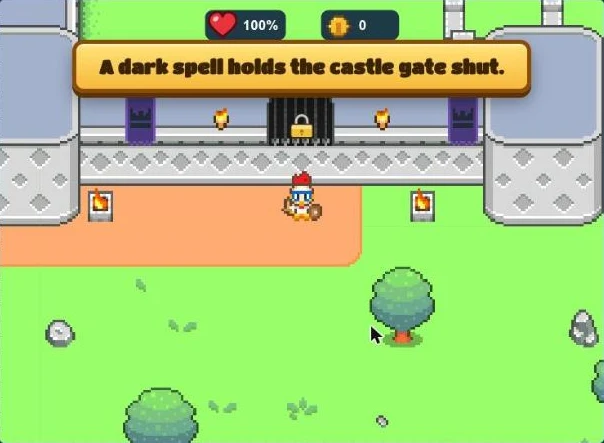
<p>The first rule, <code>when any {Heroes} enters</code>, runs each time a hero comes
into Grimstone. If the spell still holds, it shows a warning.</p>

<p><img src="/assets/posts/creating-a-quest-using-splat-script/gate-shut.webp" alt="The hero stands below the castle's iron gate, and a banner says &quot;A dark spell holds the castle gate shut.&quot;" /></p>

<p>The second rule, <code>when @spell_broken is yes</code>, runs when the check becomes
true. It also runs when the hero walks in and it’s already true. Then
<code>unlock the {Castle gate}</code> takes the lock off, and the hero can open the
gate with Open.</p>

<blockquote>
  <p><code>unlock</code> only reaches things in the world the hero is in. That’s why the
gate’s own world unlocks it, instead of Whisperwood’s script.</p>
</blockquote>

<h3 id="into-the-courtyard">Into the courtyard</h3>

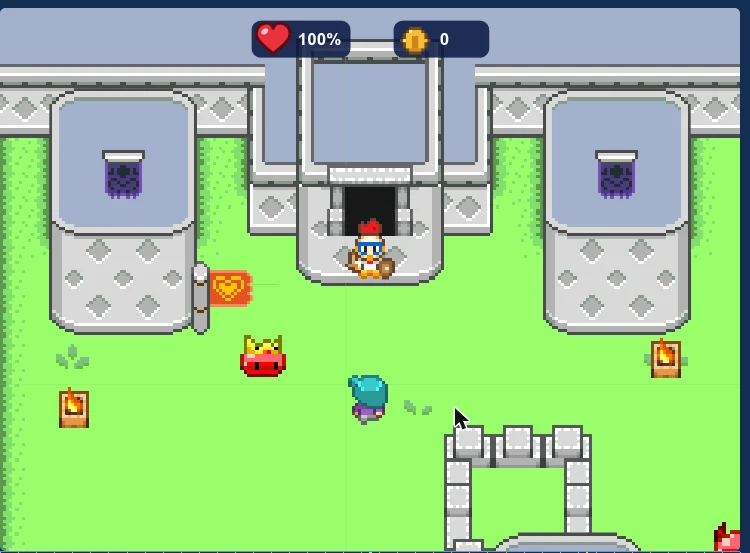
<p>The hero opens the iron gate, walks through, and comes out at the keep,
right in the courtyard with Milo and his guards.</p>

<p><img src="/assets/posts/creating-a-quest-using-splat-script/courtyard.webp" alt="Inside the courtyard: the hero has just come out of the keep's gate, with a crowned slime guard, Milo with his teal hair, banners and braziers around them" /></p>

<p>Beat the guards, talk to Milo, and he follows the hero. Lead him all the way
back to the start in Hollyhill to win.</p>

<h2 id="step-12-play-it-all-the-way-through">Step 12: Play it all the way through</h2>

<p>Press <strong>Play</strong> <img class="icon" src="/assets/posts/creating-a-quest-using-splat-script/button-play.webp" alt="" /> under the map, or <strong>Open game</strong> to play it the way
players will. Try the whole quest from the start:</p>

<table>
  <thead>
    <tr>
      <th>Where</th>
      <th>What to do</th>
    </tr>
  </thead>
  <tbody>
    <tr>
      <td>Hollyhill</td>
      <td>Read the story, type a name, talk to Rosa.</td>
    </tr>
    <tr>
      <td>Whisperwood</td>
      <td>Talk to Fen, who asks for a fish.</td>
    </tr>
    <tr>
      <td>Fishers Hollow</td>
      <td>Cross the pier and pick up the fish.</td>
    </tr>
    <tr>
      <td>Whisperwood</td>
      <td>Trade the fish for the lantern.</td>
    </tr>
    <tr>
      <td>Whisperwood</td>
      <td>Take the lantern to the Old Shrine.</td>
    </tr>
    <tr>
      <td>Grimstone</td>
      <td>Open the gate, beat the guards, free Milo.</td>
    </tr>
    <tr>
      <td>Hollyhill</td>
      <td>Lead Milo home.</td>
    </tr>
  </tbody>
</table>

<blockquote>
  <p>Testing one part? Use the <strong>Hero’s bag for testing</strong> <img class="icon" src="/assets/posts/creating-a-quest-using-splat-script/button-bag.webp" alt="" /> button above the map,
pick <strong>Fish</strong> for <strong>Slot 1</strong>, and the hero starts every Try game with a
fish. Then you can go straight to Fen. Set it back to <strong>None</strong> when you’re
done.</p>
</blockquote>

<h2 id="going-the-extra-mile-a-title-screen">Going the extra mile: a title Screen</h2>

<p>Real games start with a title. Yours can too! A <strong>Screen</strong> is a short
animation you make in the Addon Lab, up to 30 seconds long. Set it as your
game’s <strong>Opening Screen</strong>, and it plays when someone starts a new game.</p>

<p>Here’s the one we made. Press Play to watch it.</p>

<figure class="addon-embed">
  <iframe width="720" height="540" src="https://splatlabs.games/addons/embed/mDHeP84-x5X" title="Lantern | Splat Labs" style="max-width:100%;height:auto;aspect-ratio:720/540;min-height:320px;border:0" allow="fullscreen; gamepad; clipboard-write" allowfullscreen="" loading="lazy"></iframe>
</figure>

<h3 id="make-a-new-screen">Make a new Screen</h3>

<p>In the Addon Lab, press <strong>New</strong>, then <strong>Screen</strong>, and give it a short name.
Ours is called <em>Lantern</em>.</p>

<p>The stage is 16 blocks wide and 9 blocks tall. On the left are drawers of
things to add. From them, add:</p>

<table>
  <thead>
    <tr>
      <th>Drawer</th>
      <th>Pick</th>
    </tr>
  </thead>
  <tbody>
    <tr>
      <td><strong>Backgrounds</strong></td>
      <td>Sunflower hills</td>
    </tr>
    <tr>
      <td><strong>Music</strong></td>
      <td>Adventure</td>
    </tr>
    <tr>
      <td><strong>Built-in</strong></td>
      <td>The hero</td>
    </tr>
  </tbody>
</table>

<p><strong>The hero</strong> is whichever hero your game starts with, so the Screen always
matches your game.</p>

<h3 id="add-the-title">Add the title</h3>

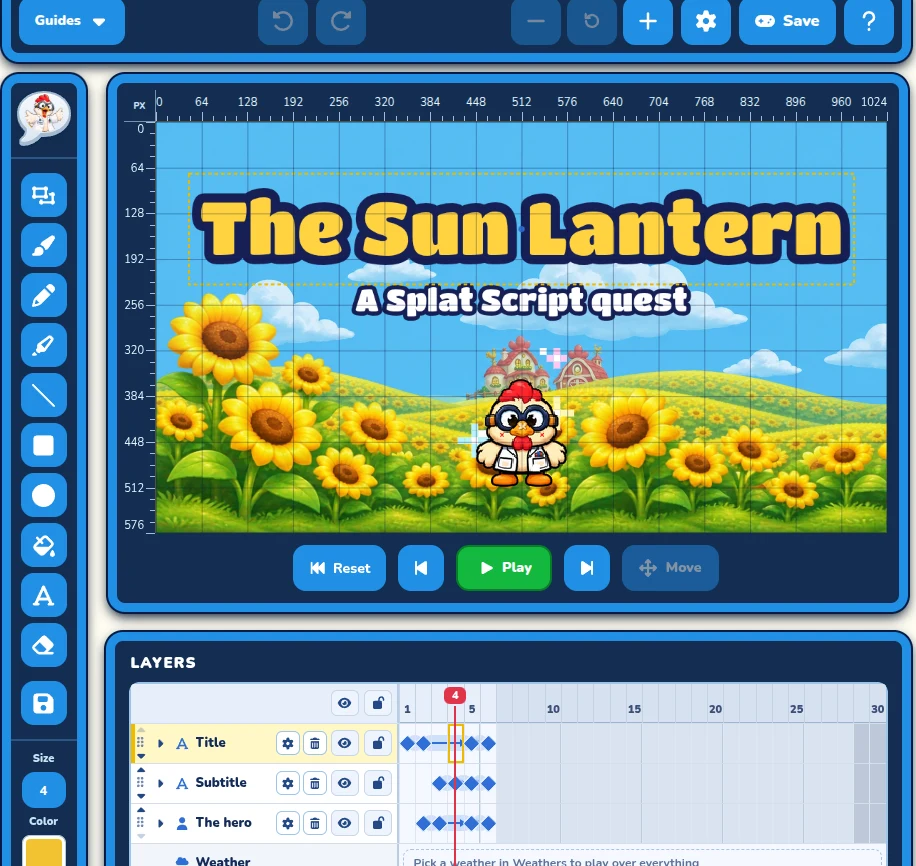
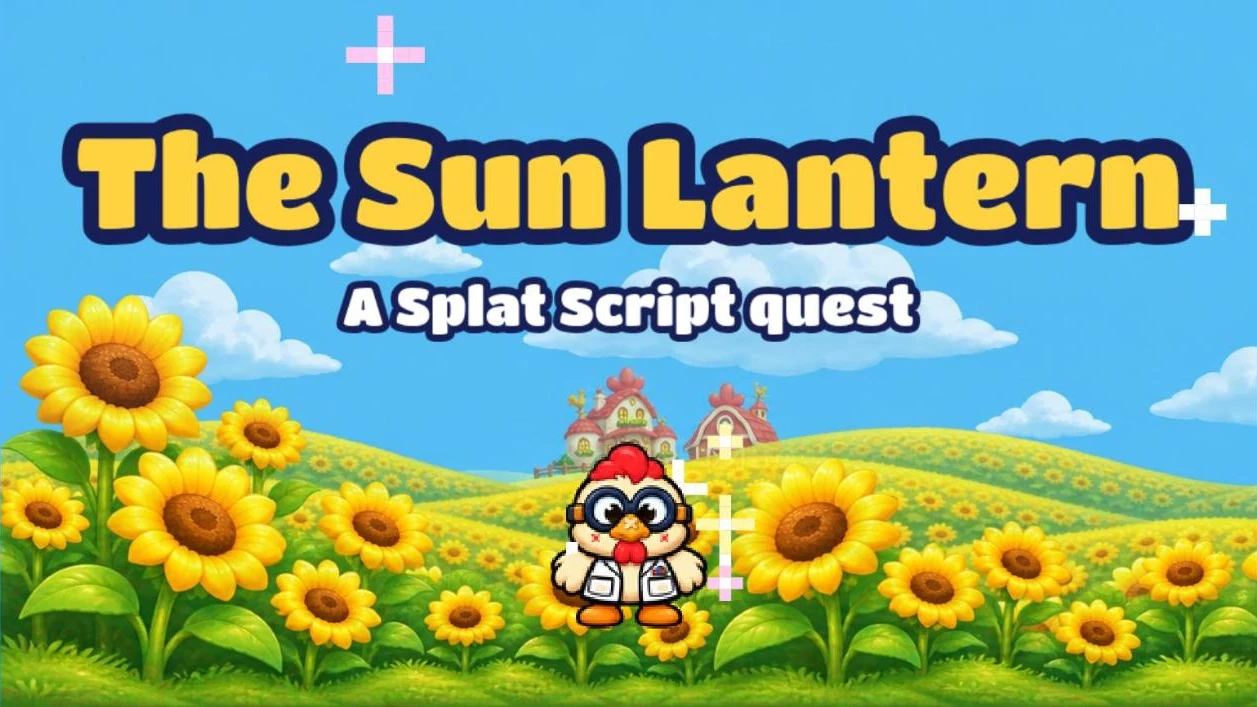
<p>Pick a yellow paint colour, then the <strong>Text</strong> tool, and click near the top
of the stage. Type <em>The Sun Lantern</em> and press <strong>Done</strong>. Add a second line
in white, like <em>A Splat Script quest</em>.</p>

<p><img src="/assets/posts/creating-a-quest-using-splat-script/screen-editor.webp" alt="The Screen editor: The Sun Lantern in big yellow letters over the sunflower hills, A Splat Script quest under it, and the hero standing in the flowers. The Layers timeline below shows Title, Subtitle and The hero" /></p>

<h3 id="make-it-move">Make it move</h3>

<p>Each thing is a layer in the <strong>Layers</strong> timeline. You set where a thing is
in a frame, and the Screen glides it to the next one.</p>

<table>
  <thead>
    <tr>
      <th>Frame</th>
      <th>Time</th>
      <th>What to set</th>
    </tr>
  </thead>
  <tbody>
    <tr>
      <td>1</td>
      <td>1.5 seconds</td>
      <td>Drag the title above the top of the stage, out of sight.</td>
    </tr>
    <tr>
      <td>2</td>
      <td>2.5 seconds</td>
      <td>Drag the title down into place, and give it <strong>Sparkles</strong>. Put the hero off the left edge.</td>
    </tr>
    <tr>
      <td>3</td>
      <td>0.75 seconds</td>
      <td>Drag the hero to the middle, set <strong>Picture</strong> to <strong>Looking at the camera</strong>, and give them <strong>Sparkles</strong> too. Hide the subtitle with <strong>See-through</strong>.</td>
    </tr>
    <tr>
      <td>4</td>
      <td>2 seconds</td>
      <td>Make the subtitle solid again, so it fades in.</td>
    </tr>
    <tr>
      <td>5</td>
      <td>1 second</td>
      <td>Change nothing. This holds everything still.</td>
    </tr>
    <tr>
      <td>6</td>
      <td>0.5 seconds</td>
      <td>Make everything see-through, so it all fades away.</td>
    </tr>
  </tbody>
</table>

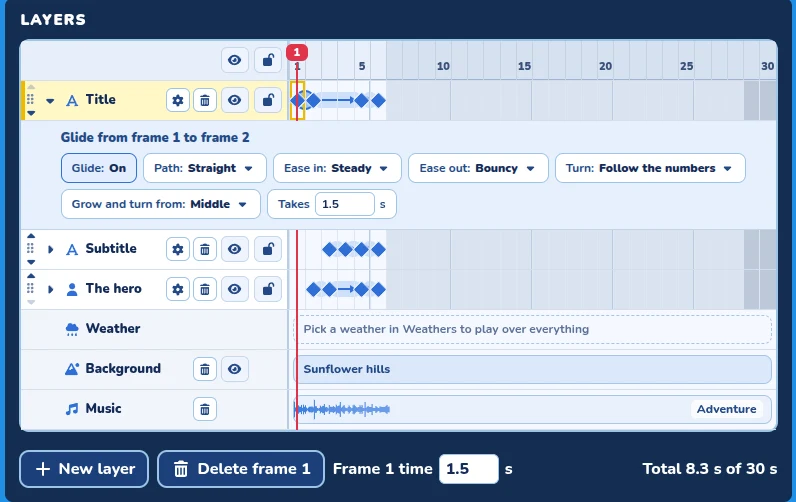
<p>To make the title bounce when it lands, press the caret beside its layer
and set <strong>Ease out</strong> to <strong>Bouncy</strong>.</p>

<p><img src="/assets/posts/creating-a-quest-using-splat-script/screen-glide.webp" alt="The Title layer's glide settings: Glide On, Path Straight, Ease in Steady, Ease out Bouncy, taking 1.5 seconds" /></p>

<p>Press <strong>Play</strong> under the stage to watch it, and change anything you like.</p>

<h3 id="save-it-and-use-it">Save it and use it</h3>

<p>Games use a Screen as it was the last time you pressed <strong>Save</strong>, so press
<strong>Save</strong> at the top of the editor.</p>

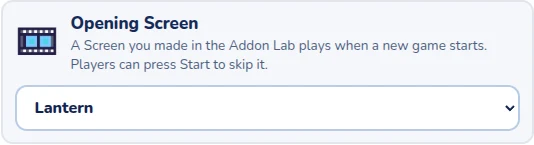
<p>Then go back to your game, open <strong>Game settings</strong>, and pick your Screen
under <strong>Opening Screen</strong>.</p>

<p><img src="/assets/posts/creating-a-quest-using-splat-script/opening-screen-setting.webp" alt="Opening Screen in Game settings, set to Lantern" /></p>

<p>Now press <strong>Start new game</strong>. Your title plays first, then the story scroll
opens. Players can press Start or Enter to skip it.</p>

<p><img src="/assets/posts/creating-a-quest-using-splat-script/screen-in-game.webp" alt="The title Screen playing in the game: The Sun Lantern and A Splat Script quest over the sunflower hills, with Cooper looking out and sparkles around him" /></p>

<h2 id="make-it-your-own">Make it your own</h2>

<p>Here are some ideas to take your quest further:</p>

<ul>
  <li>Make Fen ask for something else, like three apples.</li>
  <li>Give Rosa a reward when Milo comes home, with <code>{Game} give 10 coins to the {Hero}</code>.</li>
  <li>Hide the fish in a chest, and lock the chest with a key from another villager.</li>
  <li>Add a boss in the courtyard, and open the keep’s gate when it’s beaten.</li>
  <li>Give your title Screen weather, like <strong>Wind</strong> or <strong>Embers</strong>.</li>
</ul>

<h2 id="where-to-learn-more">Where to learn more</h2>

<p>The <a href="https://splatlabs.games/help/character-scripting/game-and-level-scripts">Game and level scripts help</a>
has more about scrolls and @variables. The
<a href="https://splatlabs.games/help/builder/adventure">Adventure builder help</a>
covers every brush, and the <a href="https://splatlabs.games/help/addons/screens">Screens help</a>
has more Screens to make. Want to try a script first? Open the
<a href="https://splatlabs.games/playgrounds">Script Playground</a>.</p>

<p>We can’t wait to play the quests you make.</p>]]></content><author><name>Splat Labs</name></author><summary type="html"><![CDATA[Build a four-world Adventure with a story scroll that learns the player's name, a hermit who drives a hard bargain, a spell that opens a castle gate from far away, and a friend to rescue.]]></summary><media:thumbnail xmlns:media="http://search.yahoo.com/mrss/" url="https://blog.splatlabs.games/assets/posts/creating-a-quest-using-splat-script.webp" /><media:content medium="image" url="https://blog.splatlabs.games/assets/posts/creating-a-quest-using-splat-script.webp" xmlns:media="http://search.yahoo.com/mrss/" /></entry><entry><title type="html">Meet Splat Script: Tell Your Characters What to Do</title><link href="https://blog.splatlabs.games/2026/11/meet-splat-script/" rel="alternate" type="text/html" title="Meet Splat Script: Tell Your Characters What to Do" /><published>2026-11-14T09:00:00-08:00</published><updated>2026-11-14T09:00:00-08:00</updated><id>https://blog.splatlabs.games/2026/11/meet-splat-script</id><content type="html" xml:base="https://blog.splatlabs.games/2026/11/meet-splat-script/"><![CDATA[<p>Your enemies and villagers now do whatever you tell them. <strong>Splat Script</strong>
lets you write what a character does in short, plain lines like
<code>when I get hit</code> and <code>run away 3 blocks</code>. Press Play, and your character does
just that.</p>

<p>It works in Adventure and Platformer games. You can type it as code, or snap
it together as blocks. At the end of this post, we’ll build a whole quest
with it.</p>

<!--more-->

<h2 id="what-a-script-looks-like">What a script looks like</h2>

<p>Here is a real script, running in a real game. Press the play button to try
it, and use the switch at the top left to see it as blocks.</p>

<figure class="script-embed">
  <iframe width="1030" height="600" src="https://splatlabs.games/t/embed/sus53bvb13x" title="The patrolling guard | Splat Labs" style="max-width:100%;height:auto;aspect-ratio:1030/600;min-height:440px;border:0" allow="fullscreen; gamepad; clipboard-write" allowfullscreen="" loading="lazy"></iframe>
</figure>

<p>A script is made of <strong>rules</strong>. Each rule starts with a <strong>trigger</strong>: a <code>when</code>
line that says when the rule happens. The lines under it are its <strong>steps</strong>,
and they happen in order from the top.</p>

<p>This script has two rules. When the game starts, the character patrols, ready
to fight. As soon as it sees the hero, it gives chase.</p>

<p>Every line is one of a few kinds:</p>

<table>
  <thead>
    <tr>
      <th>Kind</th>
      <th>What it does</th>
      <th>Example</th>
    </tr>
  </thead>
  <tbody>
    <tr>
      <td><strong>Trigger</strong></td>
      <td>Says when a rule happens.</td>
      <td><code>when I get hit</code></td>
    </tr>
    <tr>
      <td><strong>Behavior</strong></td>
      <td>What the character keeps doing until a rule says.</td>
      <td><code>chase the {Hero}</code></td>
    </tr>
    <tr>
      <td><strong>Action</strong></td>
      <td>Something that happens once.</td>
      <td><code>say "Boo!"</code></td>
    </tr>
    <tr>
      <td><strong>Variable</strong></td>
      <td>Remembers something, like a number or a yes or no.</td>
      <td><code>@count is 0</code></td>
    </tr>
    <tr>
      <td><strong>Choice</strong></td>
      <td>Picks what to do, with <code>if</code>.</td>
      <td><code>if the {Hero} is near</code></td>
    </tr>
    <tr>
      <td><strong>Loop</strong></td>
      <td>Does some steps again.</td>
      <td><code>repeat 3 times</code></td>
    </tr>
  </tbody>
</table>

<p>Big or small letters don’t matter, and neither do little words like “the”
and “a”. Splat Script reads like you’d say it.</p>

<h2 id="blocks-or-code">Blocks or code</h2>

<p>To write a script, pick an enemy or a villager in the builder, then press
<strong>Character scripting</strong> at the bottom of its <strong>Object settings</strong>. The
Character script window opens.</p>

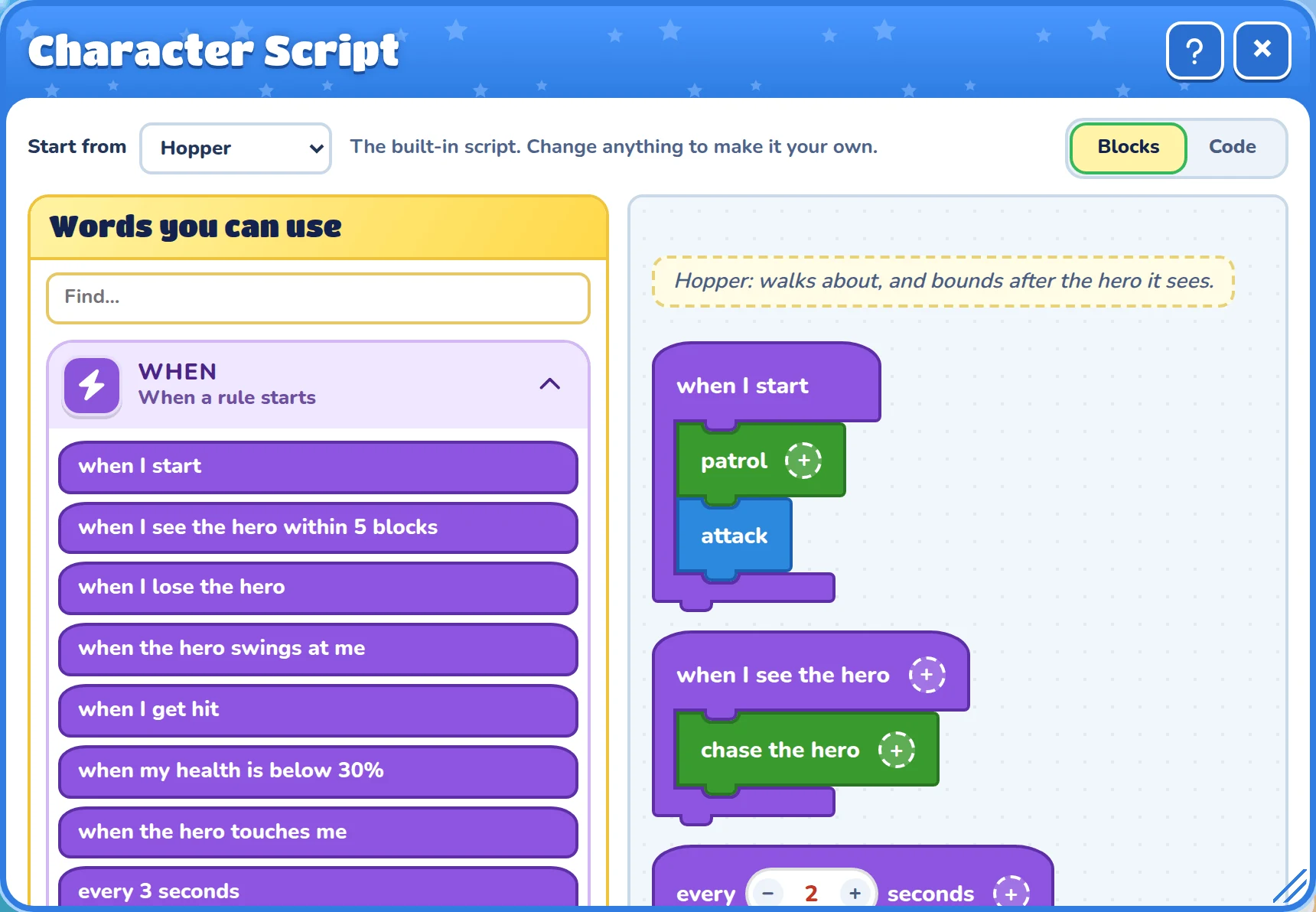
<p><img src="/assets/posts/meet-splat-script/script-blocks.webp" alt="The Character script window showing a script as blocks: a purple &quot;when I start&quot; block holding &quot;patrol&quot; and &quot;attack&quot;, and a &quot;when I see the hero&quot; block holding &quot;chase the hero&quot;" /></p>

<p><strong>Words you can use</strong> sits on the left, sorted into drawers. Drag a word into
your script, or click it to add it. <strong>Blocks</strong> and <strong>Code</strong> at the top right
switch how the script shows. Both show the same script, so you can switch
whenever you like.</p>

<blockquote>
  <p>New to scripts? Start with blocks. Switch to code now and then to see how
the same script is written.</p>
</blockquote>

<h2 id="it-forgives-slips">It forgives slips</h2>

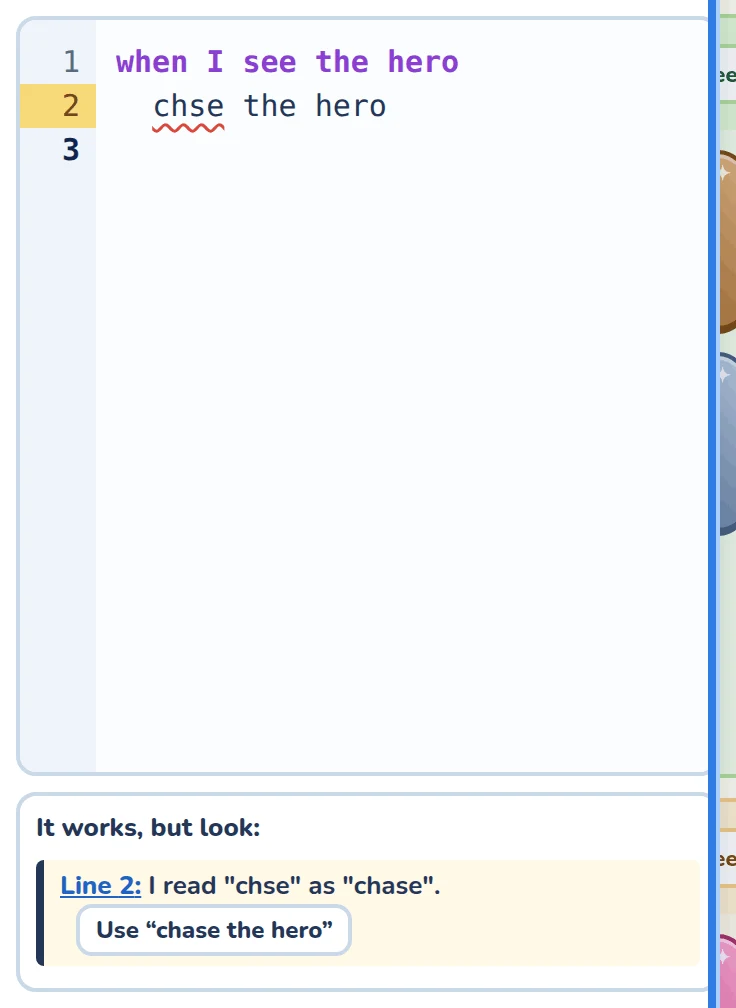
<p>You don’t need perfect spelling. When there’s only one thing you could have
meant, the line still works, and a note under the script says how it was
read. One click fixes the line for you.</p>

<p><img src="/assets/posts/meet-splat-script/script-slip.webp" alt="A script with the typo &quot;chse the hero&quot;. The note under it says: Line 2: I read &quot;chse&quot; as &quot;chase&quot;, with a button to use &quot;chase the hero&quot;" /></p>

<p>The notes come in three colours:</p>

<table>
  <thead>
    <tr>
      <th>Note</th>
      <th>What it means</th>
    </tr>
  </thead>
  <tbody>
    <tr>
      <td><strong>Yellow</strong></td>
      <td>A slip, but the line still works.</td>
    </tr>
    <tr>
      <td><strong>Red</strong></td>
      <td>The game can’t tell what you meant, so it skips the line.</td>
    </tr>
    <tr>
      <td><strong>Grey</strong></td>
      <td>A tip about something that might trip you up later.</td>
    </tr>
  </tbody>
</table>

<p>Stuck? Type what you want into <strong>Ask Cooper</strong> at the bottom of the window,
like “make the enemy run away when it gets hit”, and Cooper changes the
script for you.</p>

<h2 id="build-a-quest-the-bakers-golden-key">Build a quest: the baker’s golden key</h2>

<p>Now let’s make something bigger. The baker has lost the key to the bakery,
and the hero has to find it. Along the way, you’ll use three big ideas:
<strong>IDs</strong>, <strong>@variables</strong>, and <strong>questions</strong>.</p>

<p>You’ll need an Adventure game. Any world works.</p>

<h3 id="step-1-set-the-scene">Step 1: Set the scene</h3>

<p>Put down three things with the builder:</p>

<table>
  <thead>
    <tr>
      <th>Put down</th>
      <th>Then, in its Object settings</th>
    </tr>
  </thead>
  <tbody>
    <tr>
      <td>A villager</td>
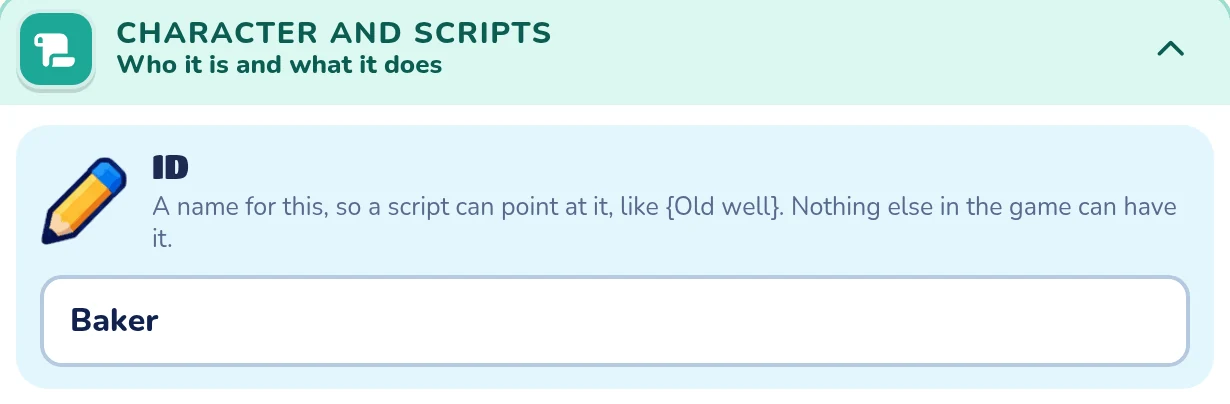
      <td>Type <em>Baker</em> in the <strong>ID</strong> box, in the <strong>Character and scripts</strong> drawer.</td>
    </tr>
    <tr>
      <td>A key</td>
      <td>Change its <strong>Key ID</strong> to <em>Gold key</em>. Hide it somewhere tricky.</td>
    </tr>
    <tr>
      <td>A house door</td>
      <td>Lock it with the Lock brush, and leave <strong>Opens with</strong> on <strong>No key yet</strong>. Call it <em>Bakery door</em> in <strong>Door id</strong>.</td>
    </tr>
  </tbody>
</table>

<p>An <strong>ID</strong> is a name a script can point at, written in curly braces, like
<code>{Gold key}</code>. Here’s the baker getting theirs:</p>

<p><img src="/assets/posts/meet-splat-script/id-box.webp" alt="A villager's Object settings, with Baker typed in the ID box" /></p>

<p>Leaving the door on <strong>No key yet</strong> means no key can open it. Only a script
can, so the hero has to finish the quest first.</p>

<h3 id="step-2-say-hello">Step 2: Say hello</h3>

<p>Open the baker’s <strong>Character scripting</strong> window, and start small:</p>

<pre><code>when the {Hero} talks to me
  say "Hello! Welcome to my bakery."
</code></pre>

<p>Press Play and walk up to the baker. They say hello. That’s a whole script!</p>

<h3 id="step-3-ask-for-help">Step 3: Ask for help</h3>

<p>Now the baker should ask the hero for help, and remember the answer. A
<strong>@variable</strong> remembers things. Its name starts with <code>@</code>, like
<code>@baker_asked</code>.</p>

<pre><code>when the {Hero} talks to me
  if @baker_asked
    say "Any luck? I was by the pond this morning."
  else
    @baker_asked is the answer to "I lost my golden key! Will you find it?" with yes or no
    if @baker_asked
      say "Thank you! Try near the pond."
    else
      say "Oh dear. Come back if you change your mind."
    end
  end
</code></pre>

<p>The <code>answer to</code> line shows the question with a <strong>Yes</strong> and a <strong>No</strong> button,
and puts the hero’s answer in <code>@baker_asked</code>. Next time the hero comes by,
<code>if @baker_asked</code> checks it. If the hero said yes, the baker doesn’t ask
again.</p>

<p><code>if</code> picks which lines run, and <code>else</code> is what happens otherwise. <code>end</code>
closes the <code>if</code>.</p>

<h3 id="step-4-bring-back-the-key">Step 4: Bring back the key</h3>

<p>Last of all, the baker checks whether the hero has the key, says thank you,
and pays them. Here’s the whole script. Try it: talk to the baker, pick up
the key, then talk to the baker again. The key is off to the top right, so
press the <strong>−</strong> button under the game to zoom out and see it.</p>

<figure class="script-embed">
  <iframe width="1030" height="600" src="https://splatlabs.games/t/embed/LbeFnKkz1yK" title="The baker's golden key | Splat Labs" style="max-width:100%;height:auto;aspect-ratio:1030/600;min-height:440px;border:0" allow="fullscreen; gamepad; clipboard-write" allowfullscreen="" loading="lazy"></iframe>
</figure>

<p><code>the {Hero} has the {Gold key}</code> is true when the hero carries the key with
that ID. Then <code>@baker_done is yes</code> remembers that the quest is finished, so
the baker says something new from then on.</p>

<h3 id="step-5-open-the-bakery">Step 5: Open the bakery</h3>

<p>A character can’t open doors on its own, but a <strong>level script</strong> can. Level
scripts run for the whole world or room, and they can point at anything with
an ID. Open <strong>Level script</strong> at the bottom of the world’s <strong>Map settings</strong>:</p>

<pre><code>when any {Heroes} picks up the {Gold key}
  show "A golden key! Take it back to the baker."

when @baker_done is yes
  unlock the {Bakery door}
  play the sound "Fanfare"
  show "The bakery is open!"
</code></pre>

<p>The first rule cheers the hero on when they find the key. The second waits
for the baker’s <code>@baker_done</code>, then unlocks the door with a fanfare.
@variables are shared by every script in the game, so the level script can
read what the baker’s script wrote.</p>

<p>Press Play and try your quest from the start. You made that!</p>

<h3 id="make-it-your-own">Make it your own</h3>

<p>Here are some ideas to try next:</p>

<ul>
  <li>Put a treasure inside the bakery, or a door to a hidden world.</li>
  <li>Make the baker ask for something else, like three apples.</li>
  <li>Give an enemy a script that guards the key.</li>
  <li>Add a second villager who gives the hero a clue.</li>
</ul>

<h2 id="where-to-learn-more">Where to learn more</h2>

<p>The <a href="https://splatlabs.games/help/character-scripting/getting-started">Splat Script help</a>
has every word Splat Script knows, and lots of recipes to copy. Want to play
with a script without building a game first? Try the
<a href="https://splatlabs.games/playgrounds">Script Playground</a>.</p>

<p>We can’t wait to see what your characters get up to.</p>]]></content><author><name>Splat Labs</name></author><summary type="html"><![CDATA[Splat Script lets you write what the enemies and villagers in your games do, in short, plain lines. Here's how it works, and how to build your first quest with it.]]></summary><media:thumbnail xmlns:media="http://search.yahoo.com/mrss/" url="https://blog.splatlabs.games/assets/posts/meet-splat-script.webp" /><media:content medium="image" url="https://blog.splatlabs.games/assets/posts/meet-splat-script.webp" xmlns:media="http://search.yahoo.com/mrss/" /></entry><entry><title type="html">Racing Is Here!</title><link href="https://blog.splatlabs.games/2026/10/racing-is-here/" rel="alternate" type="text/html" title="Racing Is Here!" /><published>2026-10-06T09:00:00-07:00</published><updated>2026-10-06T09:00:00-07:00</updated><id>https://blog.splatlabs.games/2026/10/racing-is-here</id><content type="html" xml:base="https://blog.splatlabs.games/2026/10/racing-is-here/"><![CDATA[<p>Splat Labs has a brand-new game type: <strong>Racing</strong>! Build a toy-car track one
snap-together piece at a time, then race it against your friends or the
computer. Loops, jumps, boxing gloves, exploding eggs… if you can build it,
somebody has to drive it.</p>

<!--more-->

<h2 id="build-a-track">Build a track</h2>

<p>Pick <strong>Racing</strong> when you start a new game, then choose a world, a track size,
and a shape to start from. There’s an oval, a figure eight, twisty Zig-zag
and Snake tracks, and four shapes loosely based on real Formula One circuits:
Monza, Montreal, Las Vegas, and Monaco.</p>

<p>Your track opens on a map you can zoom and spin around. From there you can
swap in new pieces:</p>

<ul>
  <li><strong>Turns, U-turns, and S-bends</strong> for twisty sections</li>
  <li><strong>Slopes, hills, and dips</strong> to test how fast is too fast</li>
  <li><strong>Loops</strong> you have to hit with enough speed</li>
  <li><strong>Jumps</strong> over open gaps</li>
  <li><strong>Bridges</strong> to cross over your own track, and <strong>drawbridges</strong> that open
and close while you race</li>
</ul>

<p>Then make it tricky. Add <strong>coins</strong> (each one takes half a second off your
time), <strong>boost eggs</strong> and <strong>invincible eggs</strong>, and hazards like swinging
<strong>hammers</strong>, wandering <strong>boars</strong>, <strong>explosive eggs</strong>, <strong>oil spills</strong>,
<strong>potholes</strong>, and a giant spring-loaded <strong>boxing glove</strong> that punches across
the road. Finish off your track with trees, warning signs, and grandstands
full of cheering fans.</p>

<p>Before you can publish a track, you have to finish a lap of it yourself.
That way every track in the Lab can be finished.</p>

<h2 id="pick-your-racer">Pick your racer</h2>

<p>Every member of the Splat Labs crew has their own kart, and each one drives
a little differently:</p>

<table>
  <thead>
    <tr>
      <th>Racer</th>
      <th>Kart</th>
      <th>Good at</th>
    </tr>
  </thead>
  <tbody>
    <tr>
      <td>Cooper</td>
      <td>Lab kart</td>
      <td>A bit of everything, boost</td>
    </tr>
    <tr>
      <td>Vix</td>
      <td>Getaway kart</td>
      <td>Top speed</td>
    </tr>
    <tr>
      <td>Rupert</td>
      <td>Hawk kart</td>
      <td>Corners and air control</td>
    </tr>
    <tr>
      <td>Jamie</td>
      <td>Builder’s buggy</td>
      <td>Dirt and steady landings</td>
    </tr>
    <tr>
      <td>Lango</td>
      <td>Hacker kart</td>
      <td>Speeding up fast</td>
    </tr>
    <tr>
      <td>Leenie</td>
      <td>Library kart</td>
      <td>Grip in the corners</td>
    </tr>
  </tbody>
</table>

<p>Want your own colours? Make a <strong>Race car</strong> in the Addons builder. Pick whose
kart to paint, choose your colours, and tune its stats. Then pick it before
your next race.</p>

<h2 id="race">Race!</h2>

<p>Tracks have four lanes, and the controls are simple:</p>

<ul>
  <li><strong>Gas and brake:</strong> up and down arrows (or W and S)</li>
  <li><strong>Change lanes:</strong> left and right arrows (or A and D)</li>
  <li><strong>Hop:</strong> Space, to jump over hammers, boxing gloves, oil, and potholes</li>
  <li><strong>Boost:</strong> Shift, but don’t hold it too long or your engine overheats!</li>
</ul>

<p>Gamepads work too, and you can change any of the buttons.</p>

<p>Race on your own against computer racers, or open a room and race up to
three friends at once. Everyone shares the same track, so watch out for
each other. Depending on the game’s settings, cars either block or bump each
other!</p>

<p>Each world drives differently, too. In <strong>Space</strong> the low gravity sends you
flying off jumps, and the roads in <strong>Ice World</strong> are <em>slippery</em>. Even the
fans change: chickens in Green Hills, skeletons in the Graveyard, penguins
in Ice World, viking warriors in Dragon World, and astronauts in Space.</p>

<h2 id="start-your-engines">Start your engines</h2>

<p><a href="https://splatlabs.games/">Build your first racing game</a> and send the link to
a friend. We can’t wait to see what tracks you come up with. Make them
weird!</p>]]></content><author><name>Splat Labs</name></author><summary type="html"><![CDATA[Splat Labs's fourth game type lets you build a toy-car track piece by piece, then race it against your friends or the computer.]]></summary><media:thumbnail xmlns:media="http://search.yahoo.com/mrss/" url="https://blog.splatlabs.games/assets/posts/racing-is-here.webp" /><media:content medium="image" url="https://blog.splatlabs.games/assets/posts/racing-is-here.webp" xmlns:media="http://search.yahoo.com/mrss/" /></entry><entry><title type="html">Welcome to the Splat Labs Blog</title><link href="https://blog.splatlabs.games/2026/10/welcome-to-the-splat-lab-blog/" rel="alternate" type="text/html" title="Welcome to the Splat Labs Blog" /><published>2026-10-06T00:00:00-07:00</published><updated>2026-10-06T00:00:00-07:00</updated><id>https://blog.splatlabs.games/2026/10/welcome-to-the-splat-lab-blog</id><content type="html" xml:base="https://blog.splatlabs.games/2026/10/welcome-to-the-splat-lab-blog/"><![CDATA[<p>Cooper here! (Yes, the bandages are still on. Long story. Rocket-related.)</p>

<p>This is the brand-new Splat Labs blog. It’s where we’ll share what’s going on
in the Lab:</p>

<ul>
  <li><strong>New game types and features</strong> as soon as they’re ready to play</li>
  <li><strong>Behind-the-scenes peeks</strong> at how we draw characters, build maps, and test games</li>
  <li><strong>Game-making tips</strong> for turning a wild idea into something fun to play</li>
</ul>

<!--more-->

<h2 id="got-an-idea">Got an idea?</h2>

<p>The best way to see what Splat Labs can do is to make something.
<a href="https://splatlabs.games/">Start building a game</a> and show us what you come up with!</p>

<blockquote>
  <p>Silly ideas. Serious fun.</p>
</blockquote>]]></content><author><name>Splat Labs</name></author><summary type="html"><![CDATA[A new home for Lab news, behind-the-scenes peeks, and tips for building sillier, better games.]]></summary><media:thumbnail xmlns:media="http://search.yahoo.com/mrss/" url="https://blog.splatlabs.games/assets/posts/welcome-to-the-blog.webp" /><media:content medium="image" url="https://blog.splatlabs.games/assets/posts/welcome-to-the-blog.webp" xmlns:media="http://search.yahoo.com/mrss/" /></entry></feed>